How to add the date taken to photos without guessing
To put the date taken on a photo, use its recorded capture date when it is available. If that date is missing, leave the stamp off or enter a date you actually know. The day you downloaded or copied a file is not necessarily the day you took the picture.
This guide uses the free date stamp tool I built. It processes images in your browser and makes new copies. You can apply one style to several photos while each photo supplies its own date.
Choose the date you want to print
- Use each photo's recorded date: keep EXIF capture date as the source and
{date}in Text. Check each preview; a camera clock can be wrong. - Some photos have no EXIF date: keep the EXIF source. Under When date is missing, choose Skip date label, or Use custom date and enter a known Custom / fallback date. The fallback applies only to photos with no readable capture date.
- Use the same known date on every photo: change Date source to Custom date and enter that date. This replaces the per-photo date choice for the whole batch.
- Do not export undated photos: choose Report and skip photo. Those photos are reported as failures instead of exported with a guessed date.
Open the date stamp tool, select Add photos, and review a small set before exporting. If you cannot verify a missing date, leave it unstamped.
The examples below use three synthetic pictures: two have deliberately assigned EXIF dates, and one has no capture date. They demonstrate these choices, not a real capture history.
Why the date in a folder can be misleading
A picture has several kinds of information around it: the file's name, dates maintained by the file system, camera metadata inside the file, and any text already visible in the picture. They can describe different events.
An EXIF capture date is metadata, not a date automatically printed on the photograph. Adobe's EXIF property reference distinguishes the original image date from the date it was stored as digital data. That distinction matters for scans and edited copies as well as camera originals.
This tool reads DateTimeOriginal, or CreateDate when the former field is absent. It never substitutes the file modification date. Metadata can still be absent, unreadable or wrong. A camera with the wrong clock can record a perfectly readable wrong date.
The underlying problem is choosing a trustworthy source for the label. Changing the typeface cannot resolve a missing or incorrect source date.
What the tool can and cannot do
It can read supported capture metadata, draw each photo's date into a new image, use a shared format and position, and apply an explicit correction in minutes. You can also enter a custom date. Several finished copies can be downloaded in one ZIP.
It cannot recover a lost shooting date from the scene, verify that a camera clock was correct, or turn a typed date into proof of when an event happened. It also does not automatically infer a time zone for you. Check the recorded date against what you know before adding a correction.
For a photo with no reliable date, an unstamped copy can be a better result than a neat but misleading label.
1. Choose a small representative set
Open the date stamp page and select Add photos. Start with a few files, including one that you suspect has lost its camera metadata. Keep the originals separately.
The date layer's Text field should contain {date}. Leave that variable in place if you want a different date for each image. Typing a literal date into the text layer would draw the same text on the whole batch.
2. Check the source and format
Expand Date & sequence. Set Date source to EXIF capture date and choose Date format. The example uses YYYY-MM-DD, which makes the year, month and day easy to distinguish.
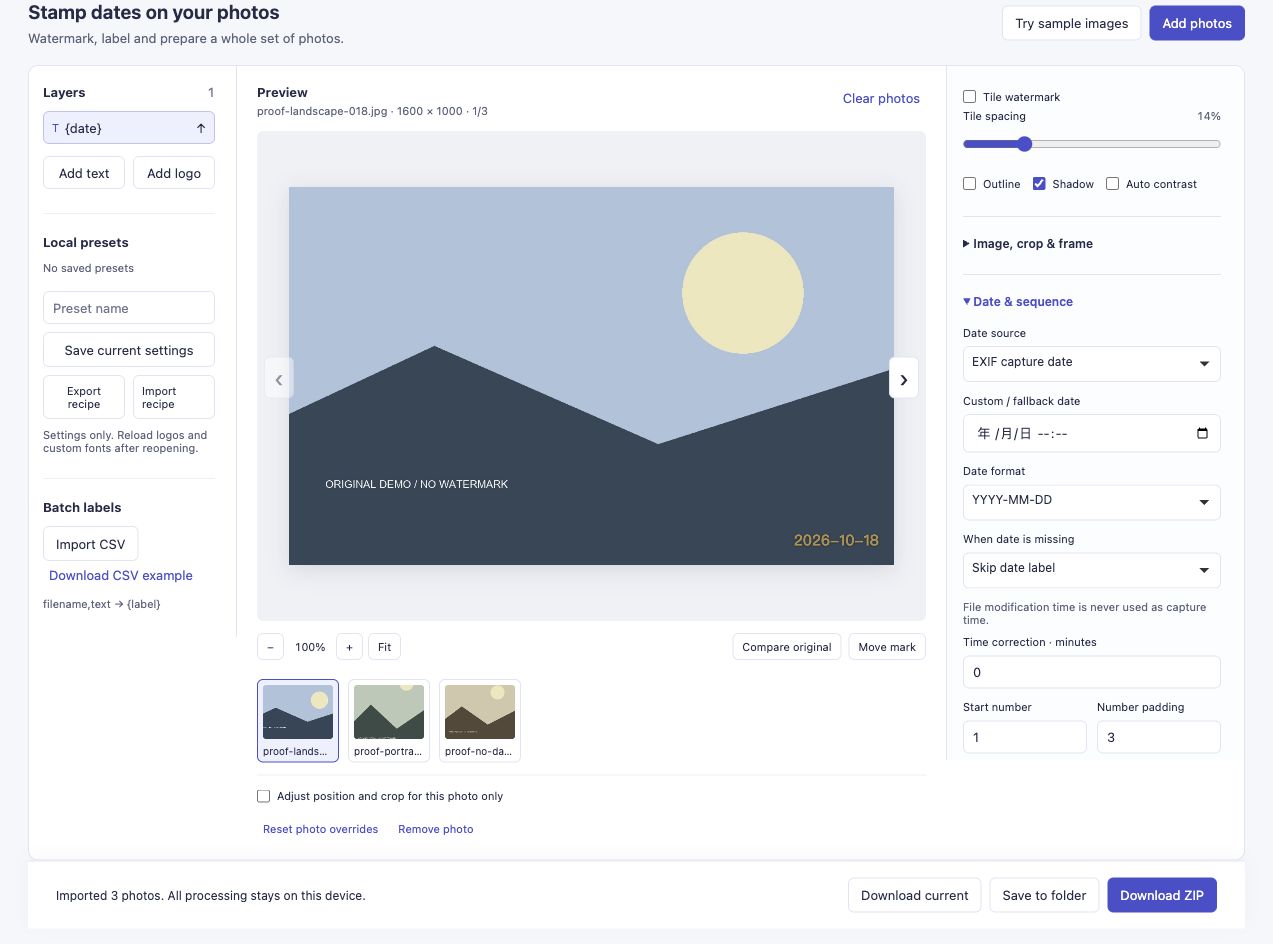
The first sample contains an assigned EXIF date of 18 October 2026. The tool draws 2026-10-18 without using today's date or the file's modification date.
Click each thumbnail. In this run, the portrait sample supplies 19 October rather than 18 October, even though both images share the same layer settings.

The portrait export keeps its own date. Its 900 × 1200 dimensions are unchanged in this example.
3. Decide what a missing date should mean
The default When date is missing setting is Skip date label. The image can still export successfully, with no date stamp. “Completed” therefore does not mean that every output contains a date.
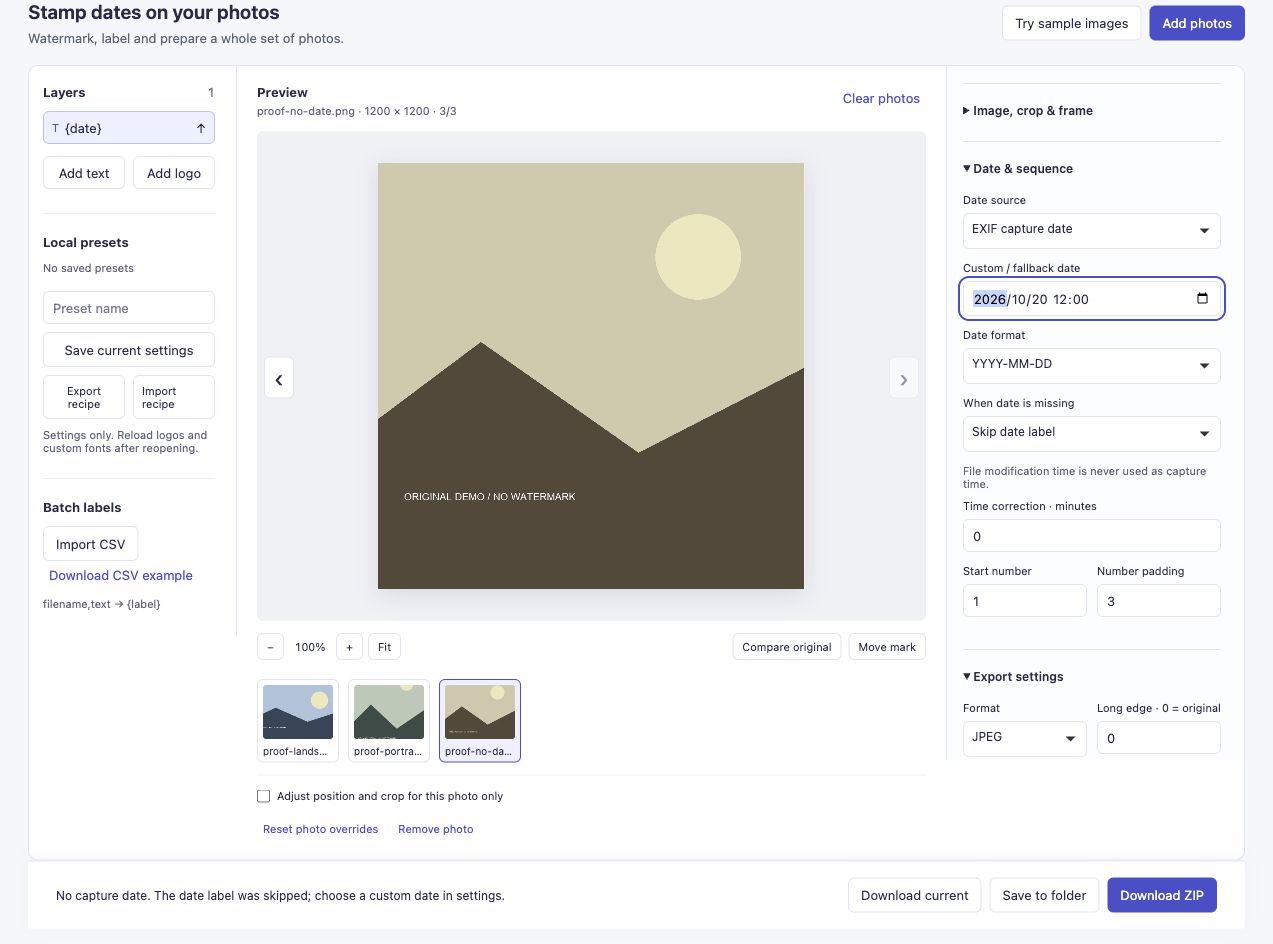
The square sample has no capture date. With the skip rule, no guessed date is drawn.
There are three choices:
- Skip date label if you want the photo exported without an uncertain date.
- Use custom date if you know a date you want to supply. Enter it in Custom / fallback date. With EXIF still selected as the source, this is a fallback for missing dates; it does not replace valid dates on the other photos.
- Report and skip photo if an unstamped output would be unacceptable. That photo becomes a reported export error rather than a successful image without a date.
For the square sample, I entered 20 October 2026 and chose Use custom date. That is a deliberately supplied example value, not a date the tool discovered.
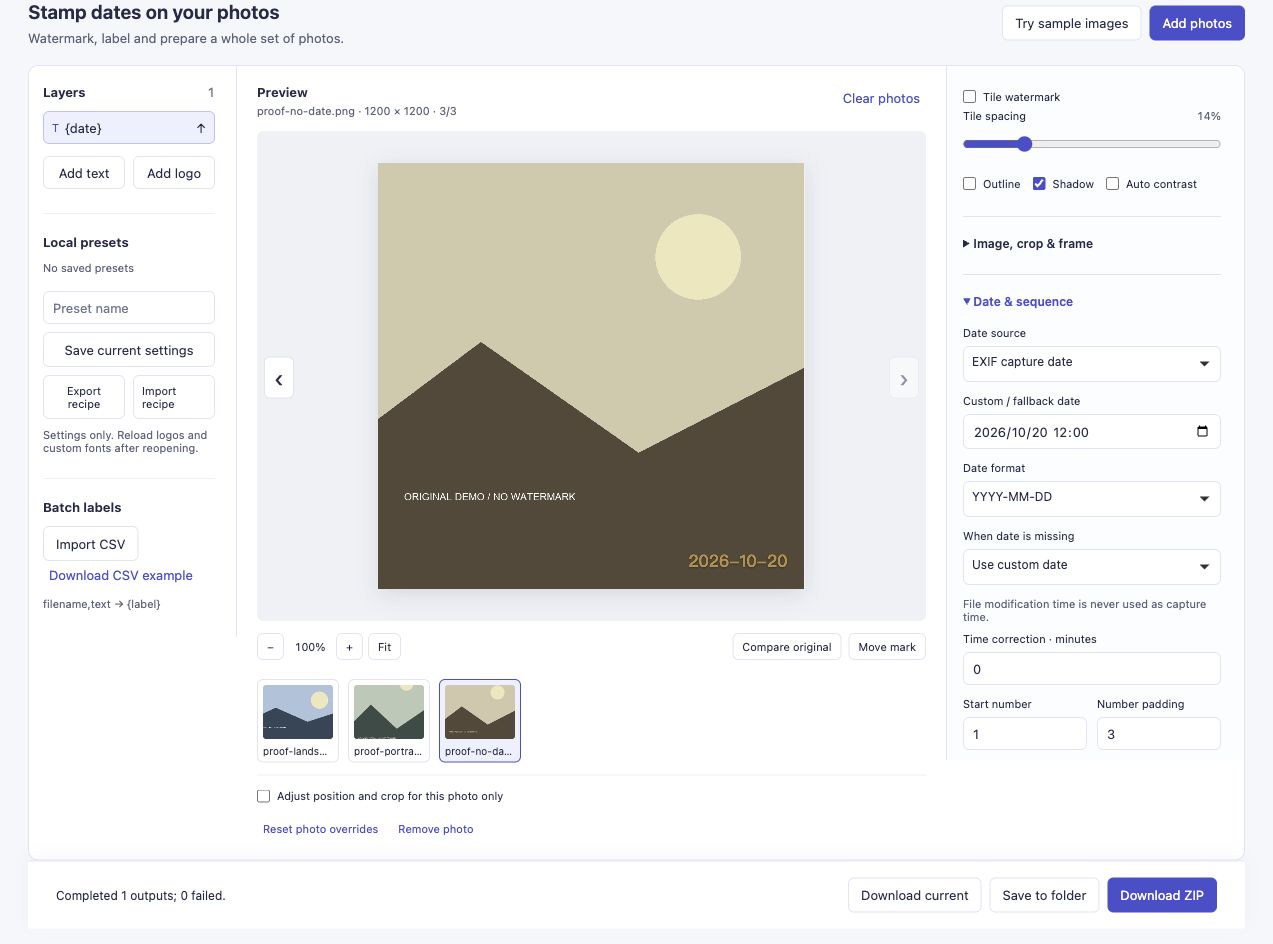
Switch Date source itself to Custom date only when you intend to use your entered date for every image.
4. Review and export copies
Check placement on both portrait and landscape photos. Make sure the date does not cover a face or important detail. If necessary, use Adjust position and crop for this photo only before changing that photo's placement.
In Export settings, Long edge · 0 = original keeps the transformed dimensions when set to 0. Cropping, frames or a footer can change those dimensions. JPEG output is re-encoded; unchanged dimensions do not mean lossless output.
Use Download ZIP for the set. Open the archive and check the pictures themselves. Our EXIF-and-skip run produced three files with no export failures: two dated photos and one deliberately undated photo. A separate Download current produced the square sample with its explicit fallback date.
Download the three EXIF-and-skip example outputs (ZIP) to compare the two dated copies with the deliberately undated copy.
Does the visible date preserve the metadata too
Those are separate choices. A stamp becomes part of the visible image. The Metadata export setting controls retained metadata and currently requires JPEG for retention. The example used Remove all: a date can remain visible even when the output no longer carries the original EXIF fields.
Keep a clean original if you may need the original metadata later. For a scan with an uncertain year, do not invent a precise day just to fill the field. Record the uncertainty in your archive notes instead.
Try the date stamp tool. If a date is missing or unexpected, tell me the browser, file format and which date choice you used. You do not need to send private photographs.