Should you crop photos before adding a watermark?
Choose the final composition before committing the watermark to a downloaded image. If you crop a watermarked JPEG later, a corner mark may be cut off or end up too close to the edge.
You can keep those decisions together in the batch watermark tool I built: choose a crop, set the sharing size, review the mark on that result, then export once. The example below uses synthetic samples and an original demo logo.
Why doing the same steps in a different order changes the result
A downloaded watermarked JPEG is a flattened image: the photo and the mark are already combined. A later crop cuts both; a later resize scales both. The watermark no longer has a separate position you can move. That is why fixing it can require going back to a clean original and repeating the work.
Inside an editor that still keeps the crop and watermark settings separate, you can change them before export. This tool renders the cropped and resized photo first, then draws the watermark on that result. Adding a layer early in the session is therefore fine; the important distinction is whether you are still editing settings or have already flattened and downloaded the image.
There are also two different size problems: pixel dimensions and file weight. A 900-pixel longest edge specifies dimensions, not an exact number of kilobytes. Neither a crop nor a watermark alone is a storage-budget setting.
What this tool can and cannot do for this job
- It can crop an individual photo, set output dimensions, review the watermark on that shape and export new copies with the watermark rendered after those transformations. Your clean source remains the place to start a future version.
- It cannot reveal pixels hidden by a watermark already baked into a JPEG, repair details cut out of a downloaded crop, guarantee an exact KB limit, or control how WordPress themes and social platforms crop the uploaded file.
- Use your usual editor first for exposure, colour work or detailed retouching. After exporting here, upload the result yourself and check the published crop. Existing WordPress media and old posts are not automatically updated.
Keep a clean master and make sharing copies from it. This avoids turning each exported copy into the only source for the next revision.
1. Keep an unmarked original
Work from the original or an edited, unwatermarked copy. Keep that file so you can make a different crop or sharing size later.
If you already baked a watermark into a JPEG, this tool cannot restore the pixels underneath it. Reopen a clean source rather than repeatedly exporting and cropping the marked version.
2. Set the composition for the current photo
Choose Add photos and select your edited images. Select the image that needs cropping, then enable Adjust position and crop for this photo only. This prevents a crop intended for one picture from being applied to the rest of the batch.
Open Image, crop & frame. Use a ratio such as 1:1, or use Crop X %, Crop Y %, Crop width % and Crop height % to adjust the selection.
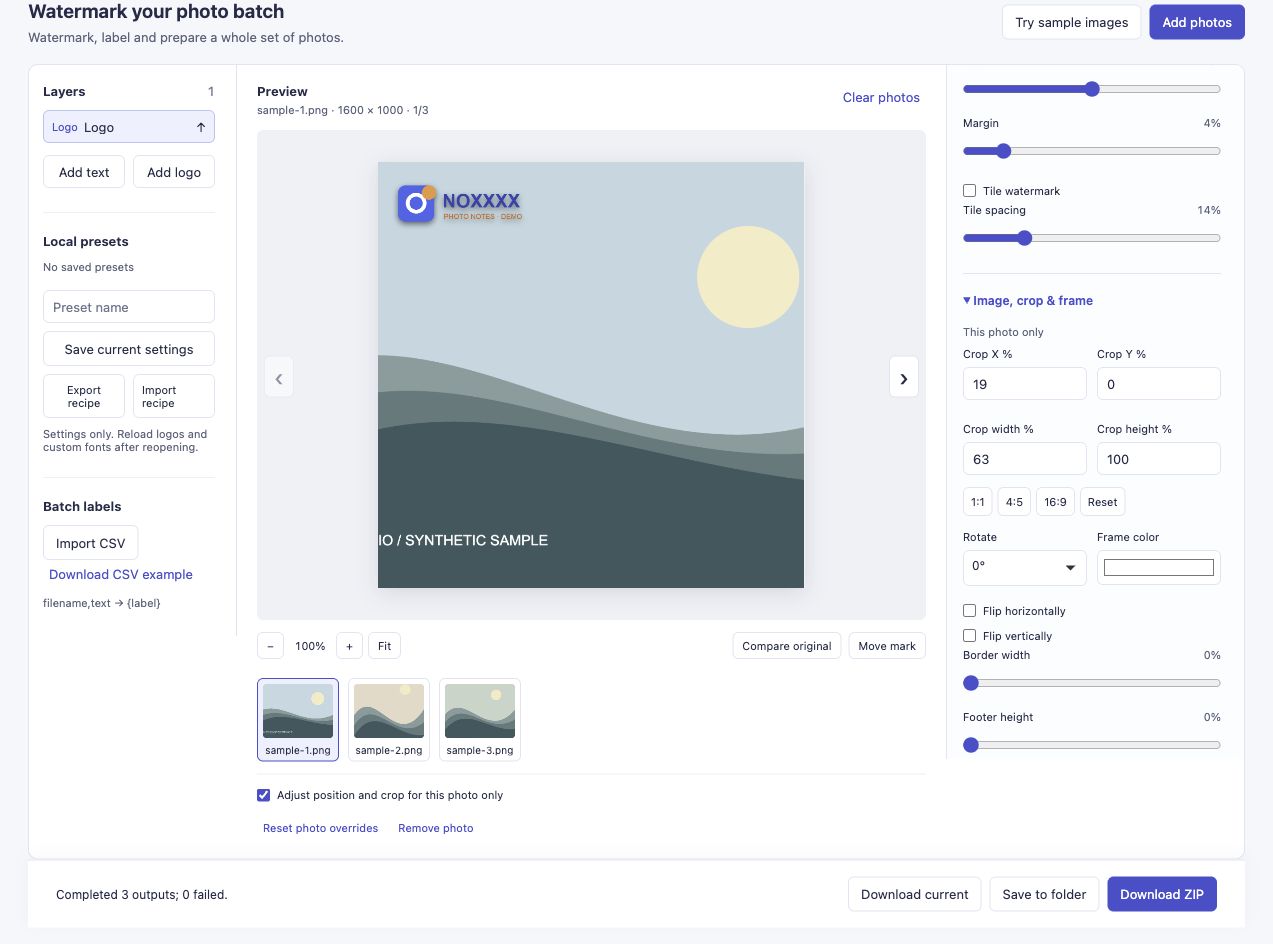
The example crops the 1600 × 1000 landscape to a centred square. The per-photo option is enabled; the other sample shapes stay intact.
A ratio button centres the crop automatically. Inspect the result: a centred square may remove something important near the left or right edge. Change the crop percentages or prepare the composition in your usual editor if it needs more work.
3. Set the output dimensions
Open Export settings. For smaller sharing copies, enter a longest edge in Long edge · 0 = original. The example uses 900 pixels; it is a convenient demonstration size, not a rule for every blog or social platform.
A longest-edge setting preserves each transformed image’s proportions. It does not force a portrait, a square and a landscape into identical dimensions. In our example, the cropped square becomes 900 × 900, the portrait becomes 675 × 900 and the original square becomes 900 × 900.
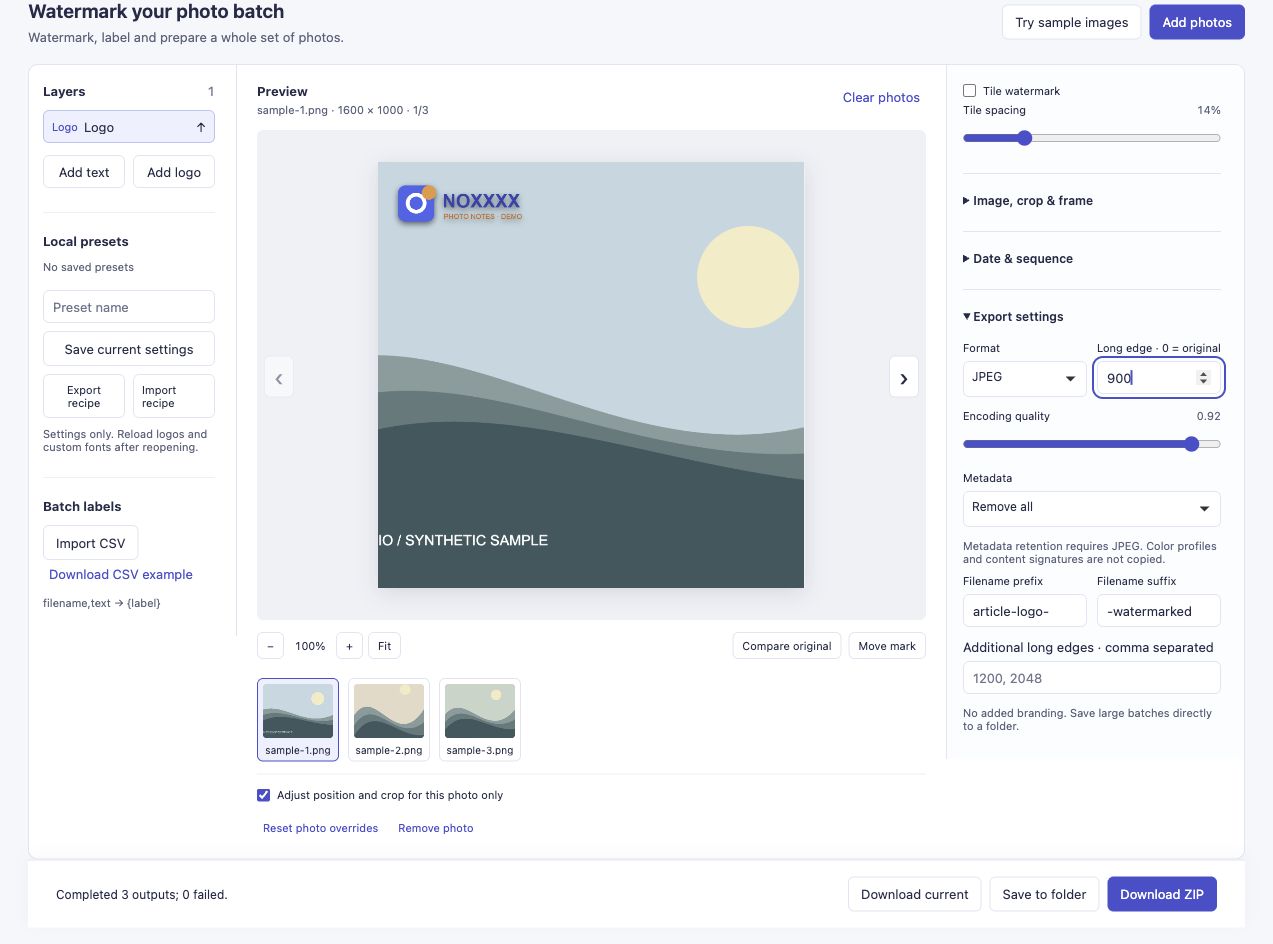
Set the size needed for the sharing task. Use 0 when you want the transformed image’s dimensions instead of a smaller copy.
Smaller pixel dimensions often reduce file size, but the final number of bytes also depends on image content, format and encoding quality. This control does not promise an exact KB target.
4. Check the watermark on the final shape
Add a text layer or choose Add logo. Set its size, margin and position while looking at the cropped preview. In this example, the blue-and-orange logo stays at the top left of the square.
The tool draws the crop and resize first, then the watermark layers on that output canvas. You can therefore change the crop and inspect the new placement without saving and reimporting a watermarked intermediate file.
If you change the composition again, check the mark again. Also review the other photos: a clear area in a square crop may not be clear in a portrait.
5. Export once and inspect the downloaded copy
Choose the output format and Download ZIP. Open the downloaded image at its actual dimensions and check the edges, important details and watermark readability.

This is the exported file, not a mockup. The same run produced three files and reported zero failures.
JPEG and lossy WebP are re-encoded. Exporting at original dimensions is not a lossless-quality guarantee, and repeatedly saving JPEG intermediates is unnecessary for this workflow. The tool is also not a substitute for colour grading, exposure correction or a full photo editor.
If a publishing platform applies another crop after upload, review that published version too. A visible watermark can still be removed or cropped by someone else.
Prepare cropped, resized and watermarked copies.
If you try this workflow, I would like to know where you still have to redo a step, especially after uploading to your blog. A description of the crop and output settings is enough; no private photo is needed.
Where this problem came from
Genevieve’s bag-review update describes watermarking before cropping and the work of updating older photos. Terri’s photo-editing post describes preparing smaller images and adding watermarks for publication. These older accounts explain the workflow problem; this tool prepares local copies and does not automatically replace images in an existing WordPress library.