How to watermark portrait and landscape photos in one batch
A watermark can fit one photo and cover the subject in the next. Mixed image dimensions create two separate decisions: how large the mark should be, and where it should sit.
Use a relative size for the shared batch, then adjust the position of the exceptional photos. You can do both in the batch watermark tool I built. This guide uses the tool’s synthetic landscape, portrait and square samples.
Why one setting works on one photo and fails on another
There are two different causes. First, a fixed pixel size occupies a different proportion of a small image than of a large one. Second, the subject and the clear areas move from picture to picture. Relative sizing helps with the first cause; it cannot decide which corner has empty space in the second.
Cropping also changes the available space. A position that looked clear on the full frame may cover the subject after a crop. Set the intended composition first, establish a shared recipe, then review the exceptions. Splitting every exception into a new batch is one possible workaround, but it adds file handling and repeated settings.
What this tool can and cannot do for this job
- It can size a mark and its margin relative to the image’s short edge, keep differently shaped photos in one queue, and override a selected photo’s placement or crop. You can drag a non-tiled mark for a more precise position.
- It cannot automatically understand a face, a stitch pattern or another important subject and choose a safe corner. The same percentage also does not guarantee the same perceived prominence: wording, background and logo shape affect what people see.
- You still need to inspect each photo and open representative exported files at their intended viewing size. Use a different colour, outline or alternate logo if placement alone cannot make the credit readable.
The practical goal is a consistent starting point with deliberate exceptions. It is not identical placement regardless of the photograph.
1. Keep different shapes in the same queue
Choose Add photos, or use Try sample images to follow the example. Select a text layer and enter a short credit line. For a logo, choose Add logo and select your local file.
Start with Adjust position and crop for this photo only unchecked. This lets you establish the shared placement first. Choose Bottom right, for example, and inspect both a wide image and a tall image before changing the size.
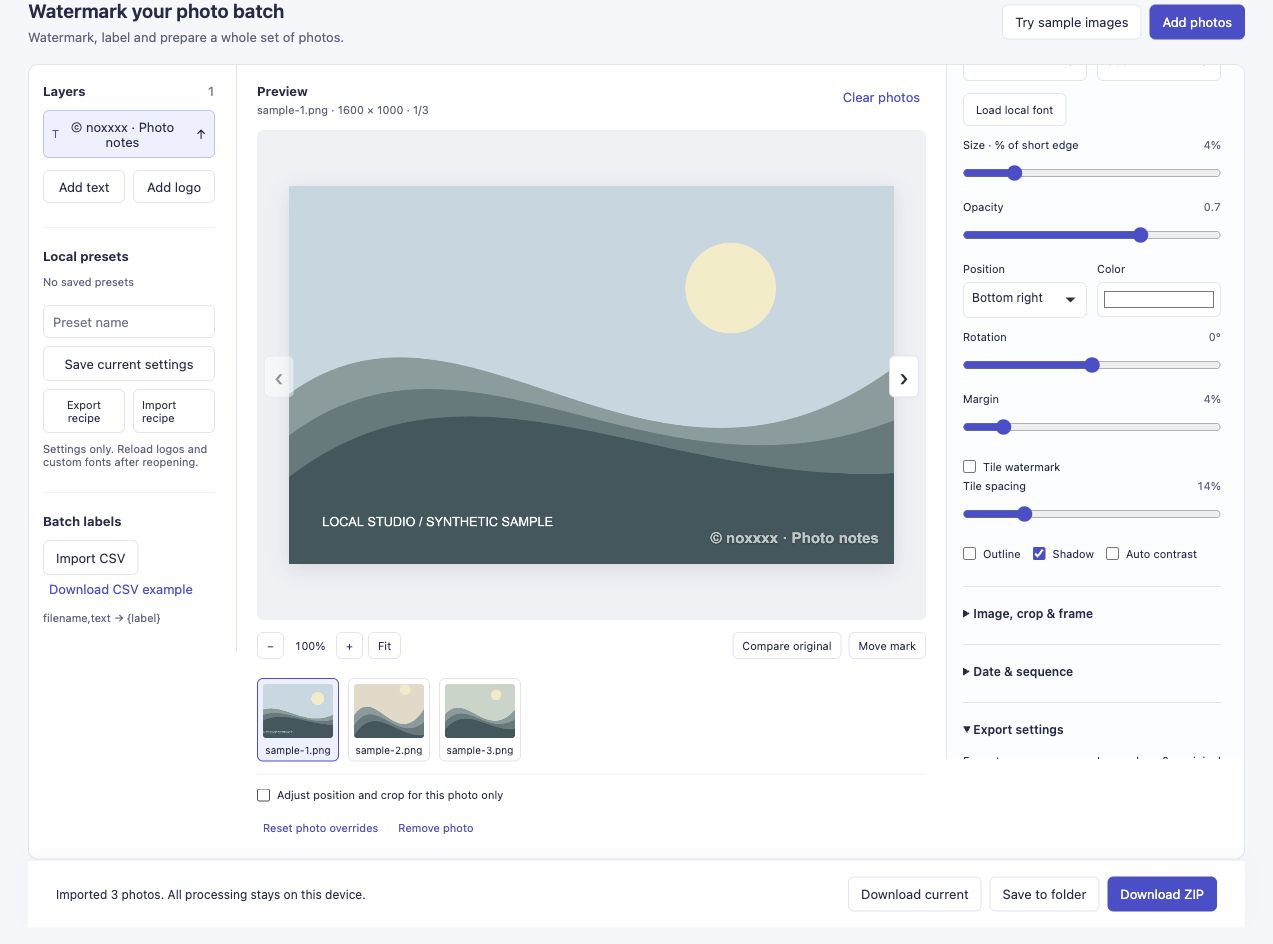
The landscape is 1600 × 1000. Its text uses the same shared recipe as the other photos.
2. Size the mark relative to the photo
Size · % of short edge uses each image’s shorter side. For text it controls the font size; for a logo it controls the logo height. The tool preserves the logo’s aspect ratio.
For example, 4% corresponds to a 40-pixel font size on a 1600 × 1000 image and a 36-pixel font size on a 900 × 1200 image, before any additional output scaling. The width also depends on your words or logo shape. Very wide marks can be reduced to fit.
Margin also follows the short edge. This gives a useful proportional starting point across different dimensions, but it does not make every background equally readable or guarantee that the same corner is clear in every picture.
3. Change only the photo that needs a different corner
Select the portrait in the thumbnail queue. Enable Adjust position and crop for this photo only. Then choose Top left in Position.
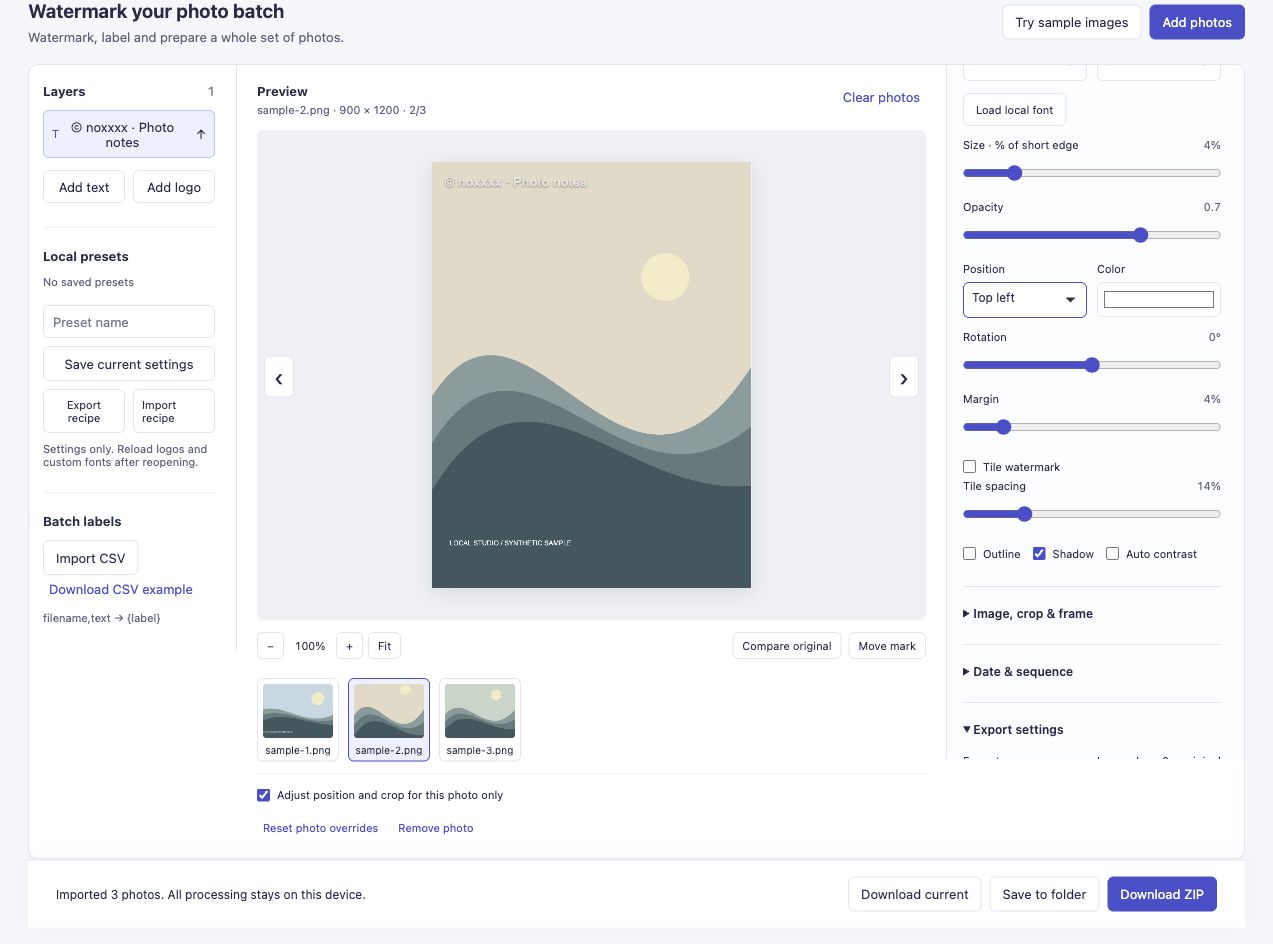
Only the selected portrait receives this placement. The checkbox is the important step before changing the corner.
Switch back to the landscape and check its Position. In this example it remains Bottom right.
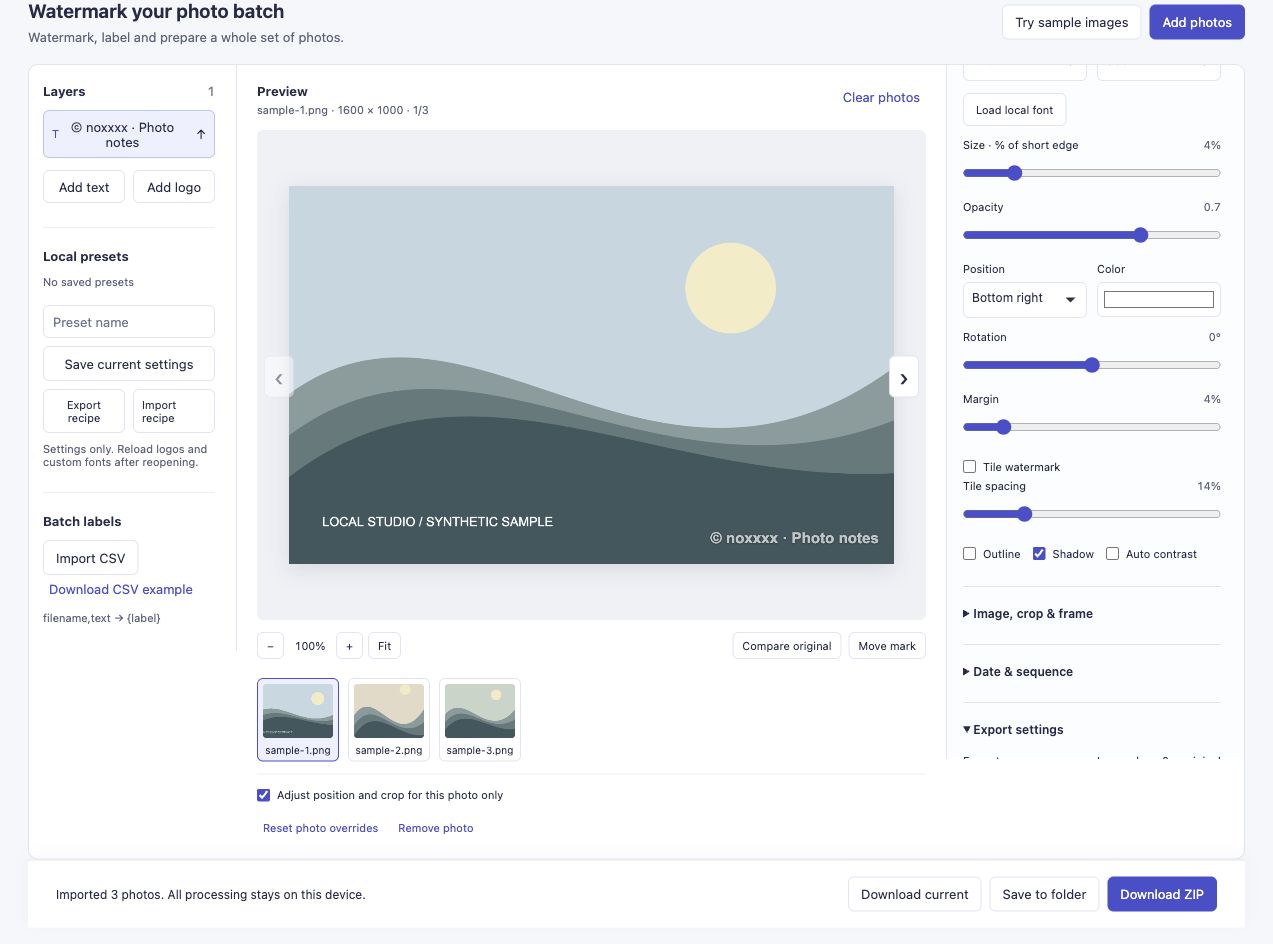
The two images stay in one batch with different watermark positions.
For a more precise location, enable Move mark and drag the selected non-tiled mark in the preview. Keep the per-photo option enabled if that adjustment should apply only to the current image. Fit and preview zoom help you inspect the photo; zooming the preview does not resize the exported file.
4. Check visibility as well as position
The white mark in the portrait example sits on a light background. That makes it less readable even though its position is correct. Before publishing your own photos, check opacity, outline and shadow, or use a colour that contrasts with the intended area.
Keep marks away from details readers need to see. For a crochet or quilt tutorial, that may mean preserving the stitch pattern; for an event photo, a face or name badge may be the important detail. A small credit line can identify the source without solving every composition problem automatically.
5. Export and inspect both orientations
Choose an output format and size under Export settings, then Download ZIP. Open at least one landscape and one portrait from the downloaded files, rather than judging the result only from thumbnails.
The demonstrated export retained 1600 × 1000, 900 × 1200 and 1200 × 1200 dimensions with the output long edge set to 0. It produced three files with no failures. JPEG output is re-encoded, so those dimensions are not a promise of pixel-for-pixel preservation.
A visible watermark can identify your work. It can still be copied, cropped or edited out.
Try mixed-photo batch watermarking.
If you try a mixed batch, let me know which placement still needs extra work. A description of the photo shape and the setting that failed is enough; you do not need to send private pictures.
Where this problem came from
Owen’s workflow note describes splitting photos into separate batches when the watermark needs different positions. In Yvonne’s discussion, a reader described watermark size and position changing with the crop. Those historical examples explain the problem addressed here; they are not comparisons against current versions of Lightroom, Photoshop or BlogStomp.