How to add a coloured PNG logo to photos without Photoshop
If your logo contains two colours, keep it as a transparent image and place that image on your photos. This preserves the artwork’s colours instead of rebuilding the mark as a single-colour stamp.
This walkthrough uses the batch watermark tool I built. The example is an original blue-and-orange demo logo over the tool’s synthetic sample images. You can download the demo PNG to practise; it is not a customer’s or another photographer’s logo.

Why a logo can lose colour or still show a rectangle
A brush or stamp can use artwork as a shape or mask, rather than keeping its original colour pixels. The two-colour-to-monochrome problem in the source discussion is a reminder to choose a representation that retains what you need. For this workflow, keep the logo as an image layer instead of rebuilding it as a single-colour shape.
Transparency is a separate property. A white background baked into a file remains visible until those pixels are made transparent; reducing the whole layer’s opacity fades the logo too. Even a properly transparent logo can become unreadable on a similar-coloured photograph. Original colours, transparent surroundings and sufficient contrast are three different checks.
What this tool can and cannot do for this job
- It can place an existing transparent PNG over multiple photos, retain the artwork’s colours with Logo style: Original, and adjust size, opacity and placement. The example below verifies a blue-and-orange logo in downloaded JPEGs.
- It cannot recover lost colour from a monochrome source, invent missing detail in a tiny logo, recover editable design layers from a flattened image, or guarantee a readable mark on every background. It is not a logo designer or a vector editor.
- Its cleanup is limited: the exposed white/black colour removal is not intelligent subject extraction. It may remove intended parts of the artwork. For a complex background or a damaged source, prepare a clean transparent logo in an image editor first.
Keeping the artwork’s colours is also not a promise of exact colour values in every final file. Output encoding and subsequent platform processing can change edge pixels or appearance; inspect the downloaded and published copies.
1. Start with a genuinely transparent file
Use a PNG exported with a transparent background. A .png extension alone does not guarantee transparency: a white rectangle can be part of a PNG’s pixels.
Keep a reasonably sharp source file. Our demo logo is 560 × 160 pixels. If a small logo is enlarged far beyond its source size, its edges may look soft. Start from a larger original when you can.
You do not need to lower the entire logo’s opacity just to get rid of its background. Opacity fades the artwork and the background together; it does not turn white pixels into transparency.
2. Add photos, then add the logo layer
Open the tool and choose Add photos. Choose Add logo in the Layers panel and select your local transparent PNG. If you only want the logo, select the default text layer and choose Delete to remove that extra credit line.
In Layer settings, keep Remove background on Keep and Logo style on Original for an already-transparent colour logo. You do not need Apply logo cleanup for this route.
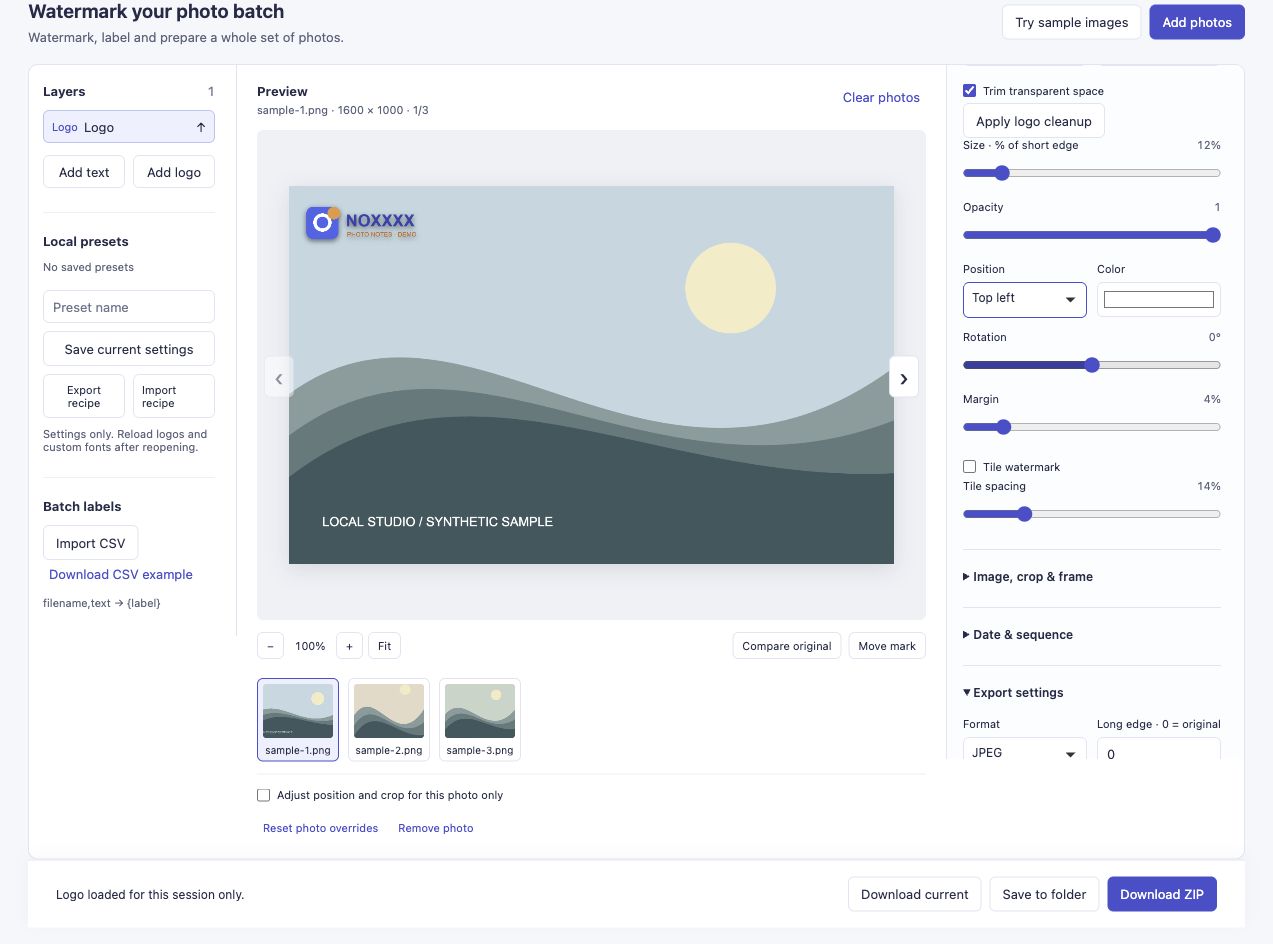
The demo is a PNG image layer. Its transparent surroundings let the sample background show through.
The tool also exposes white/black background cleanup, but it is a simple colour-based operation. If your artwork contains intentional white or black areas, removing that colour may also remove parts you meant to keep. For this tutorial, use a correctly exported transparent PNG so you can leave those cleanup settings alone.
3. Adjust the size and find a readable area
Size · % of short edge controls logo height. The demo uses 12%, Opacity of 1, and Top left placement. A logo with a different shape will need a different setting; 12% is an example, not a recommended size for every brand.
Check the logo against the actual background. A blue logo over dark water or an orange logo over a sunset may be hard to read. Try a clearer area, a different position or a suitable alternate logo designed for that background.
If one image needs a different corner, select that image and enable Adjust position and crop for this photo only before changing Position. See the mixed-photo placement guide for that workflow.
4. Download and inspect the output
Choose Download ZIP, then open the exported files. The transparent logo becomes part of the photo; it does not create a transparent hole in the finished JPEG. The photograph should remain visible around the logo rather than being covered by a rectangular background.

This image was extracted from the ZIP downloaded through the tool. It retains the sample’s 1600 × 1000 dimensions; JPEG encoding can slightly change colour values and edge pixels.
Our three-image run completed with no failures. Inspect your own outputs at the size people will actually see, especially if a blog creates small thumbnails. Fine lettering that works in a large preview may disappear when the image is displayed much smaller.
If the logo still looks wrong
- A rectangle is visible: check whether the source PNG actually contains transparent pixels. Lowering opacity alone will not fix an opaque background.
- The colours have changed: check Logo style and start again from the original file if you applied black, white or invert cleanup.
- The mark looks soft: check the original logo resolution and the downloaded output. Preview zoom, a tiny source logo and JPEG encoding can each affect what you see.
- It covers the subject: reduce its size or use per-photo positioning rather than forcing one corner onto every image.
If you try your own logo, let me know whether the difficulty is transparency, colour, sharpness or placement. Please describe the source file and output settings rather than sending private brand files.
Where this problem came from
A reader in Anne’s Photoshop watermark tutorial asked why a two-colour logo became monochrome as a brush. Anne’s reply suggested a transparent PNG as an alternative. Meeka’s watermark examples also show why the same artwork needs checking against different backgrounds. Neither source is an endorsement of this tool, and a visible logo cannot reliably prevent copying or AI scraping.