How to add filenames to photos for easier photo selection
If someone needs to tell you which photos they want, print an identifier on each preview. “proof-landscape-018.jpg” is easier to match to an original than “the mountain picture near the end.”
The free filename label tool I built reads each selected file's name and draws it on a new copy. It works in your browser. This guide uses three synthetic sample images to show a small selection workflow, including what happens to output dimensions.
Why selections become hard to match
A filename can be visible in your file manager but disappear when a picture is shown in a message, slideshow or screenshot. The recipient sees the picture while you need a reference that maps back to a file.
There is a second problem: names can change between export rounds. If today's preview says 018 and tomorrow's renamed collection assigns 018 to a different picture, a clear-looking label still identifies the wrong file.
The useful part of a proof label is the stable mapping behind it. Choose the names first, label the sharing copies second, and keep that relationship until the recipient has finished selecting.
What this tool handles
It can draw each file's stem, its full name including the extension, or a sequence number. You can put the label in a footer or over the picture, review the batch and download new copies together.
It does not collect choices from recipients, host a private gallery, rename the source files or deliver the final high-resolution originals. It also does not create a contact sheet containing every photo on one page. If you need those features, use a gallery or delivery workflow that provides them.
A filename label is an identifier. It does not by itself restrict copying or make a public link private.
1. Settle the names before making previews
Choose the files for one selection round. Check for repeated names, especially when combining files from different cameras or folders. A visible label such as IMG_0001 is ambiguous if two different originals share that name.
Use your normal file-management workflow to assign unique names if needed, then select those files in Add photos. Do not rename your only originals casually just to make a demonstration work. A stable, documented preview-to-original mapping is enough.
Avoid putting private names, addresses or other information you do not want to share in the visible labels. Once a filename is drawn into the image, hiding file details in the sharing app will not hide the label.
2. Choose the right filename variable
The filename page begins with {filename} in Text. It removes the last filename extension for the visible label. For our input proof-landscape-018.jpg, the label is proof-landscape-018.
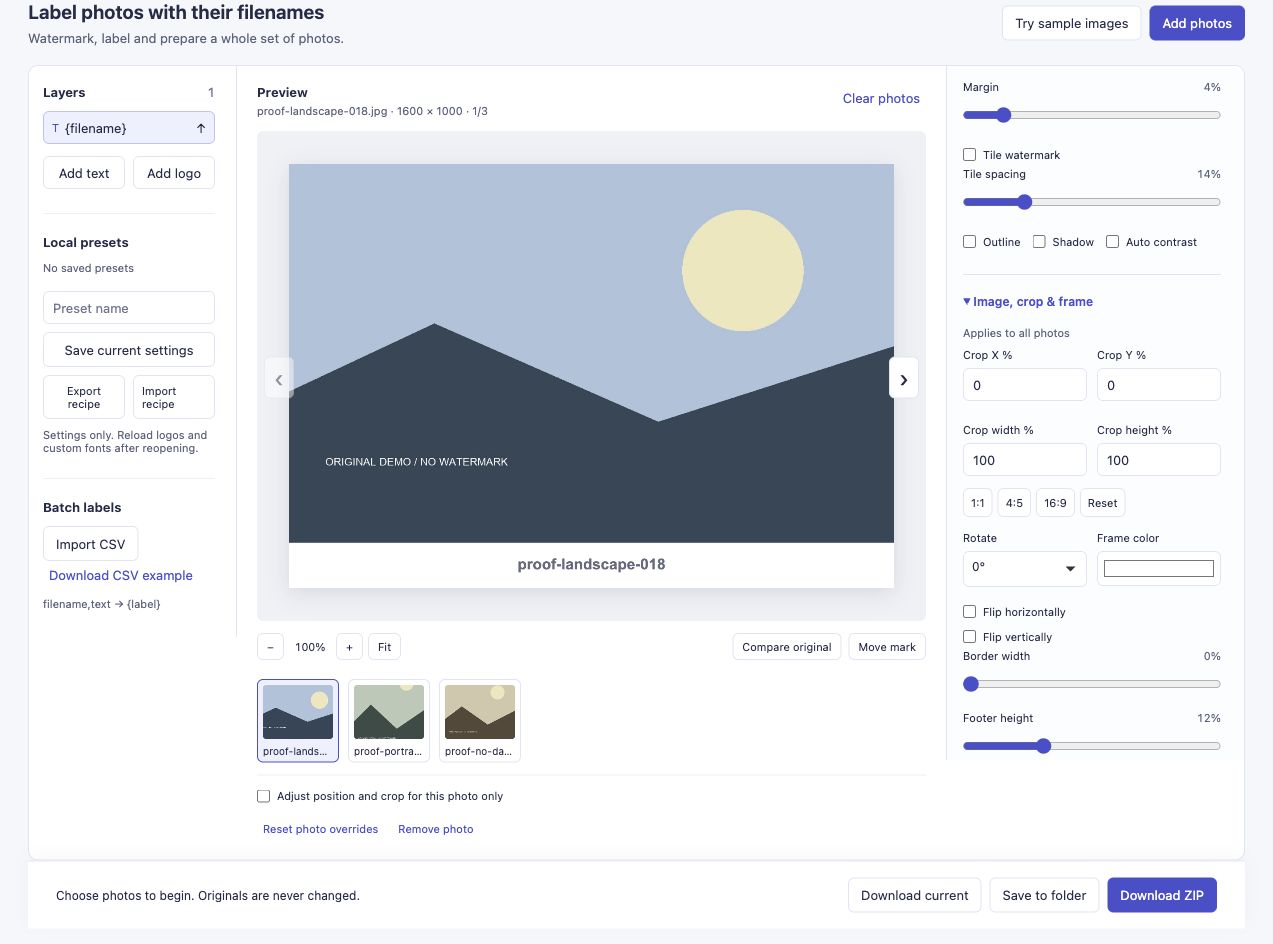
The default footer keeps the identifier away from the picture itself. The input is a synthetic sample, not a client's photo.
Use {fullname} when the extension is useful to the recipient. In the actual run below, the visible label becomes proof-landscape-018.jpg.
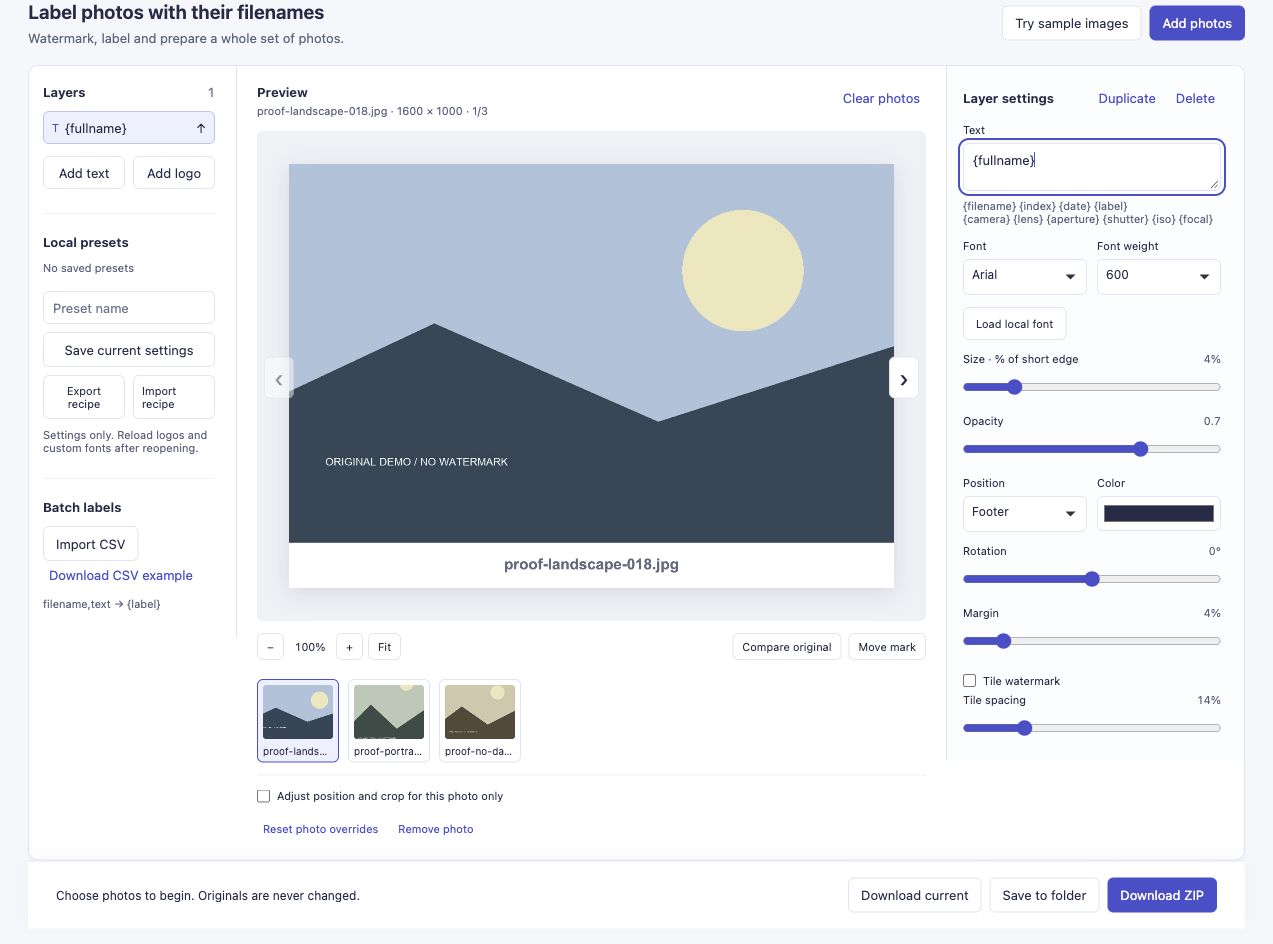
The label comes from the input filename. Changing Filename suffix in Export settings changes the output file's name, not this input-derived label.
You can also use {index} for a padded sequence. If you do, keep the same queue and a record of how each number maps to its original. Do not ask someone to pick “003” and then rebuild a differently ordered set before resolving that choice.
3. Decide whether a footer fits the delivery format
The default Position is Footer. Under Image, crop & frame, Footer height controls the extra strip. In this example it is 12%, with no crop, rotation or border.
That strip increases the canvas height. Our 1600 × 1000 landscape became 1600 × 1120. The 900 × 1200 portrait became 900 × 1308, and the square became 1200 × 1344. These are the dimensions of this example, not universal output sizes.
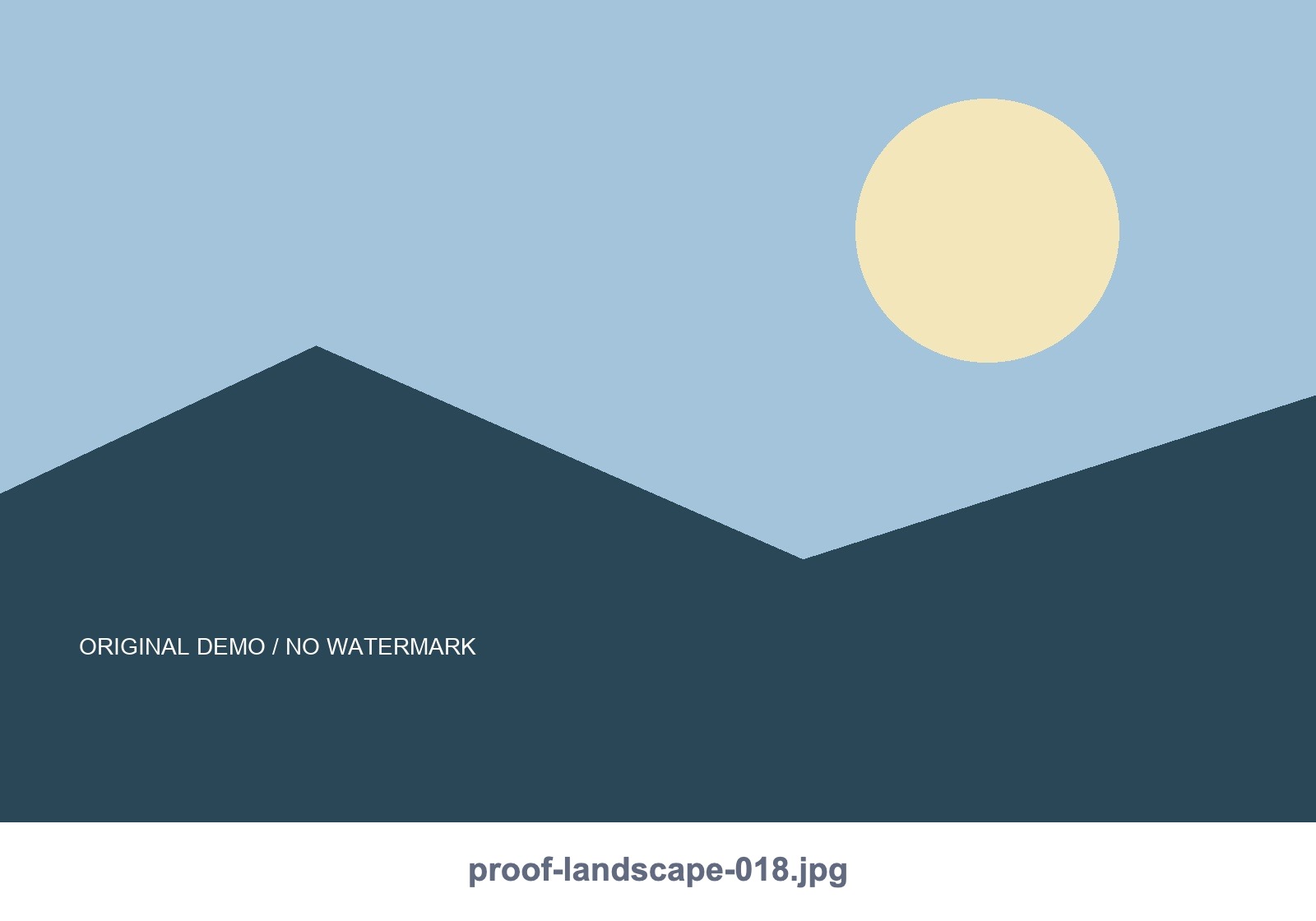
The footer is part of the exported image. A platform that crops to a fixed aspect ratio may cut it off.
If you need the original aspect ratio, use an overlay position and reduce Footer height to zero. Moving the text alone does not remove an existing footer. Review the result on each photo, because the same corner may be clear on one picture and cover a subject on another.
For exact placement examples, see the portrait and landscape watermark guide.
4. Export and check the recipient's view
In Export settings, choose the format and dimensions for your preview copies. Use Download ZIP, open it and compare the visible label on each output with its intended original.
The tested run used {fullname}, JPEG and the default footer. It produced three readable outputs with zero reported failures. The source files were unchanged. This small run does not establish how a large session will perform on your device.
Before sending the full set, try one preview in the app the recipient will use. Does it show the complete footer? Is the identifier readable at the app's normal display size? A perfectly readable local image can become awkward if a message preview crops it or shows it too small.
Tell the recipient which identifier to return and keep the selection round consistent. For example: “Please send the filenames printed under the photos you want.” Keep clean, unlabelled originals for the final delivery.
When a different workflow makes more sense
Use a contact-sheet tool if the recipient needs every image on a single numbered page. Use a proofing gallery if you need recorded selections, access controls or delivery status. Use a file manager or photo catalogue for bulk renaming and archive organisation.
This tool is useful for the narrower job: making individual sharing copies whose identifiers remain visible when the surrounding file interface disappears.
Download the three full-filename example outputs (ZIP) to inspect the labels and added footer on each image.
Try adding filenames to photos. If you try a set, I would like to hear where matching a selection back to an original still gets confusing, particularly after the previews pass through your usual sharing app.