What a visible photo watermark can and cannot protect
A visible watermark can help someone recognise who made a picture or where to find its source. It cannot make a downloadable image impossible to copy, crop or edit.
That is the useful starting point when deciding whether to add one. Choose a mark for a specific sharing purpose, then check what it costs the picture in readability and appearance.
I built a free browser watermark tool for making those sharing copies. It adds text or a logo locally on your device. This article explains where that helps and where an extra layer of text does not solve the underlying problem.
Attribution and control are different jobs
Your name or address inside a picture can remain visible when the picture is separated from its caption. A reader who sees a repost may have a way to find you. That is an attribution benefit.
But an image viewer needs access to image pixels in order to display them. Adding text to those pixels does not add an access rule that follows every later copy. Someone may keep the whole image, crop around a corner mark or edit the image. A mark is also something another person can type, so its presence alone does not verify an author's identity.
The deeper issue is expecting a visual label to enforce what another person can do with a file. Those are different mechanisms. If access matters, consider how and with whom you share the file as well as what you draw on it.
Pick the purpose before the position
For a blog illustration, you may want a small credit that survives separation from the post. For selection previews, you may need a readable filename. For a private family archive, you may decide that a name across the image adds little value.
Ask what the viewer should learn from the mark. A short name or address may answer that question. A dense paragraph can obscure the photograph without making copying impossible.
Adobe's Watermark Editor documentation describes text and graphic marks with controls for appearance and placement. Those are the practical choices to examine here; no particular opacity or corner is a universal protection setting.
What this tool can and cannot do
The tool can put the same name or PNG logo on several pictures, adjust its relative size, opacity and position, and let you change placement for an individual photo. It exports new copies, which you can review before sharing.
It cannot stop screenshots, enforce credit on another website, monitor reposts or promise that a mark cannot be removed by editing software. It does not automatically update images already in a WordPress media library. If old posts need new copies, you still need to replace their images in your publishing workflow.
The tool also does not turn a visible label into a verified identity, a certified date or a restriction on AI training. Avoid relying on it for a guarantee it cannot deliver.
Make a sharing copy with a clear credit
Open the batch watermark page and choose Add photos. Work from edited files you are ready to share, and keep clean originals separately.
Select the text layer under Layers and replace © Your name in Text with the short credit you want visible. The earlier walkthrough below uses three synthetic samples and the example text © noxxxx · Photo notes.
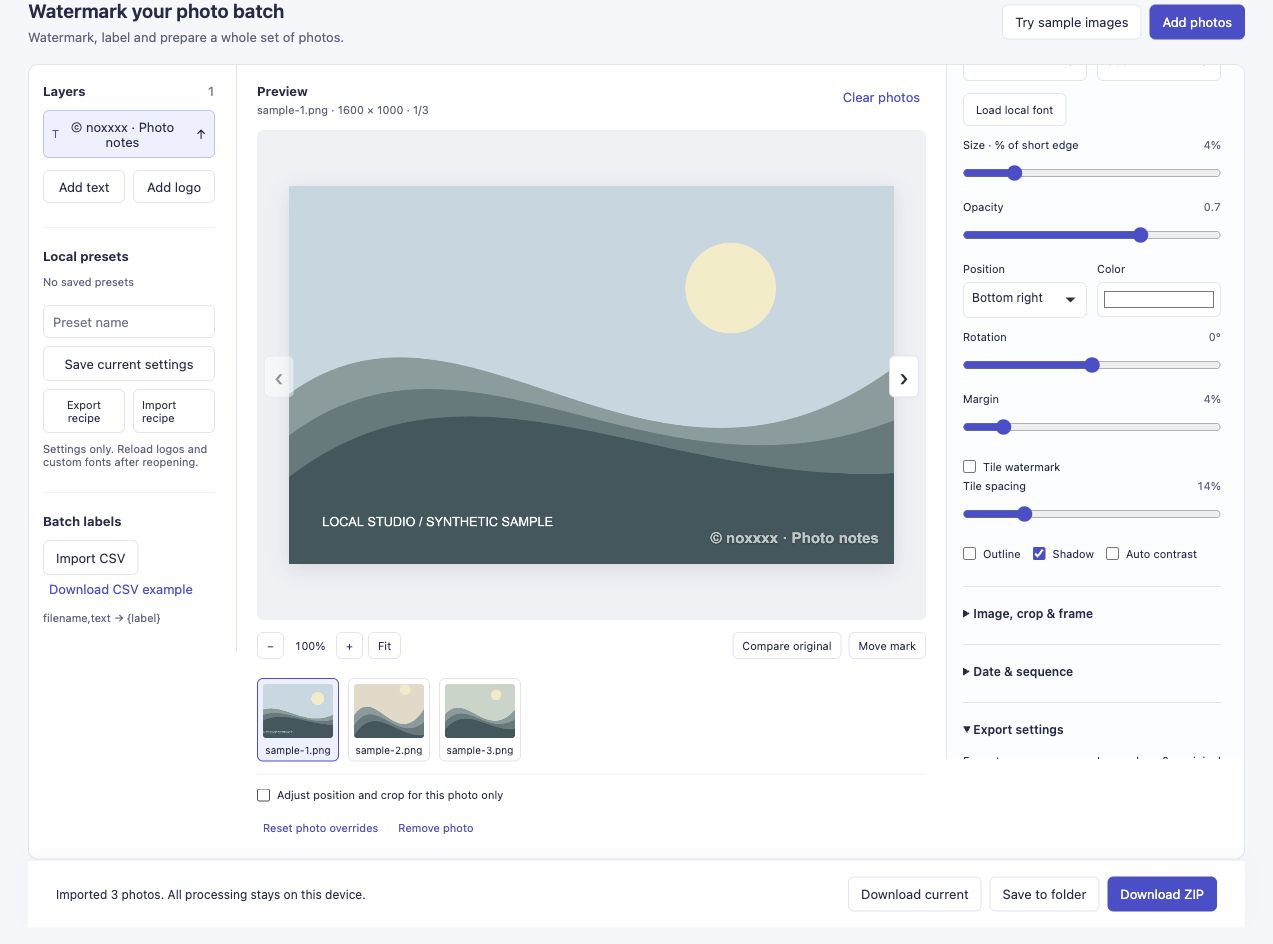
This is an existing tool walkthrough image, reused to show a visible credit. It is not evidence that the pictures resisted copying or editing.
Adjust Size · % of short edge, Opacity, Margin and Position while looking at the picture. Check the mark against both bright and dark parts of the scene. What matters is whether someone can read it without losing the detail you wanted to show.
For an existing logo, use Add logo and choose a transparent PNG. Transparent pixels and a low-opacity layer are different: lowering opacity will not remove a white rectangle that is already part of the logo file.
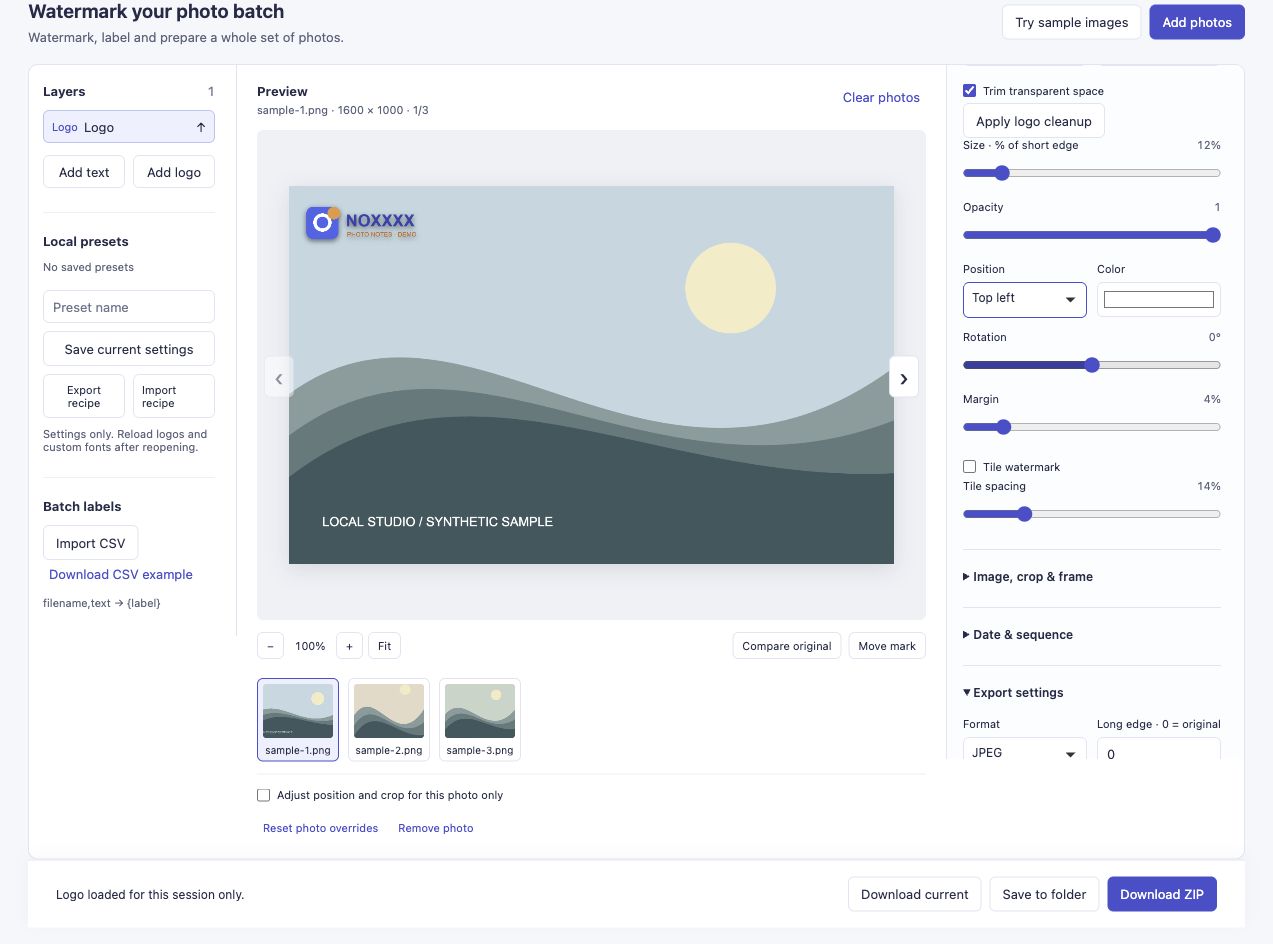
If the logo has the wrong background or lost its colours, fix the source asset first. Moving a damaged asset cannot restore information it no longer contains.
For those problems, see the coloured PNG logo guide.
Review the picture at its final size
Step through the queue. Look for a credit that covers a face, product detail or part of a pattern. Use Adjust position and crop for this photo only for an exception instead of assuming one corner works everywhere.
A central or repeated mark can make a simple crop less convenient, but it also covers more of the picture. It still does not make removal impossible. Choose that tradeoff deliberately rather than treating the amount of covered area as a protection score.
Set your sharing dimensions before the final check. A mark that is clear at full resolution may be hard to read after the whole image is reduced. A platform may also crop the uploaded copy differently from the version you inspected.
Download the results and check at least one in the place you intend to publish it. Check the entire set locally before sharing. Download ZIP reports whether the tool generated its outputs; that result is not a test of what a later platform or editor will do to them.
Keep the original and choose the sharing workflow
Once a visible mark is exported, it is part of the new image. Keeping the unmarked original avoids having to reconstruct covered details later. Keep enough information to match each sharing copy to its original.
For a small selection, a clearly labelled preview may be enough. For controlled delivery, consider a gallery or sharing service with the access features you need. For a picture already copied elsewhere, adding a stronger mark to your own copy will not retroactively change that existing copy.
Try the watermark tool if you want to prepare a few sharing copies. I would be interested in where a name or logo becomes hard to read or gets in the way of the picture. That is a practical problem the preview and placement controls can help improve.