How to watermark a batch of photos without Photoshop
Set your name or logo once, review the photos, and download marked copies together. You do not need to open and save every picture separately.
This walkthrough uses Local Photo Watermark, a free tool I built. Image processing happens on your device. You can use your own photos, or follow along with Try sample images. The screenshots below use the tool’s synthetic samples, not a customer’s photos.
Why this job becomes repetitive
The recurring work is not just drawing a name. It is reopening each file, rebuilding the same settings, saving a copy and keeping track of which ones are finished. A shared recipe removes repeated setup; a queue and a single ZIP reduce file handling. That is the workflow issue this guide addresses.
There is still a separate editorial decision: which photos deserve to be shared, and where a mark is acceptable. Batch processing cannot make those decisions for you. If every image needs a different treatment, a shared recipe saves less time. Start with a set that has something in common, such as the photos for one blog post.
What this tool can and cannot do for this job
- It can apply text or a PNG logo to a batch, use shared settings, allow per-photo placement and crop adjustments, and export new copies together in a ZIP. The photos are processed locally in your browser.
- It cannot choose the best shots, detect every face or detail that a mark might cover, replace images already on WordPress, or publish and tag your social posts. Review the queue and upload the finished files yourself.
- Use something else when you need exposure correction, detailed retouching or an automated archive-to-publishing pipeline. Do those jobs in the appropriate editor or publishing workflow, then use this tool for the watermark stage.
A visible credit is a way to identify a source. It is not a guarantee against copying or removal. The benefit here is fewer repeated steps, not protection that the tool cannot enforce.
1. Choose the photos you actually want to share
Open the tool and choose Add photos. Select the edited JPG, PNG or WebP files for one post, project or event. HEIC is also supported, although this walkthrough uses PNG inputs.
Select a representative batch before adding your whole collection: include a landscape, a portrait and an image with an important detail near a corner. Keep the original files in a separate folder. The tool creates new output files; it does not update your WordPress media library or replace photos already published on a blog.
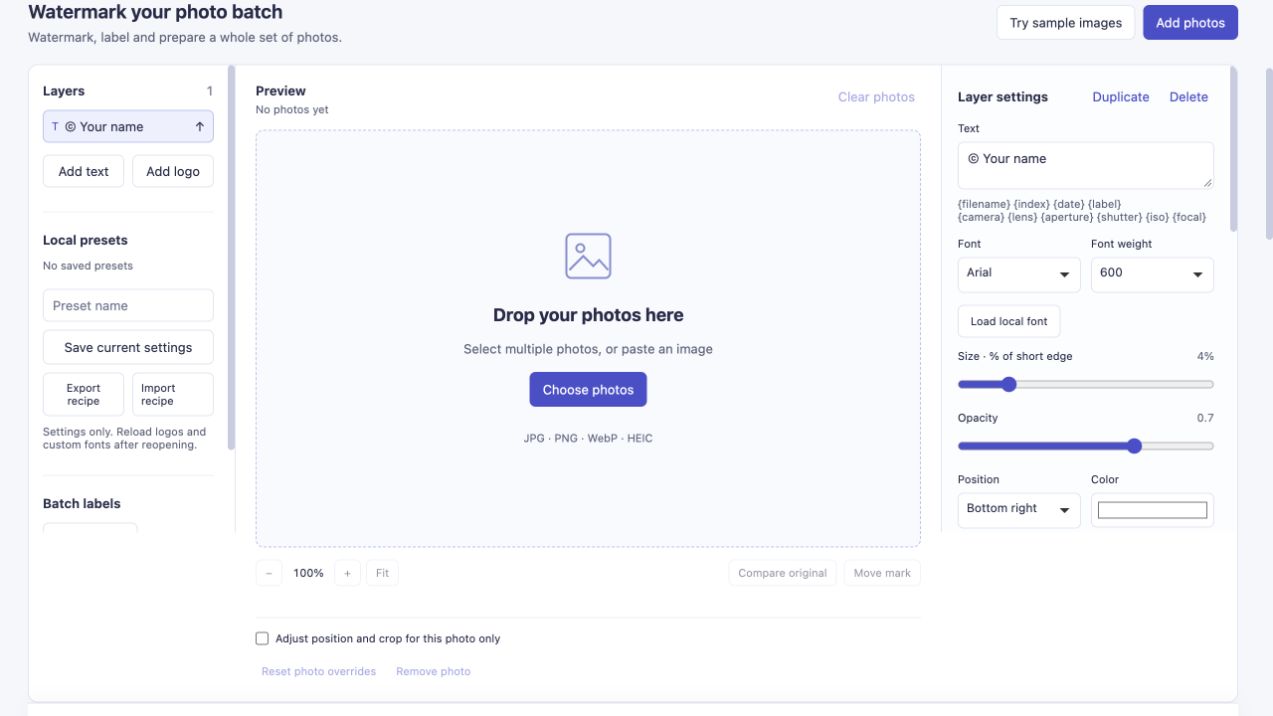
Start with the photos for one sharing task. Choose Try sample images if you want to practise first.
2. Enter your watermark once
Select the text layer under Layers. Replace © Your name in Text with your name, blog address or a short credit line. Our example uses © noxxxx · Photo notes.
Choose a Position, then adjust Size · % of short edge, Opacity and Margin. A short name is easier to keep legible than a long sentence. Start with the preview rather than treating someone else’s font size as a universal setting: image dimensions and the amount of text both matter.
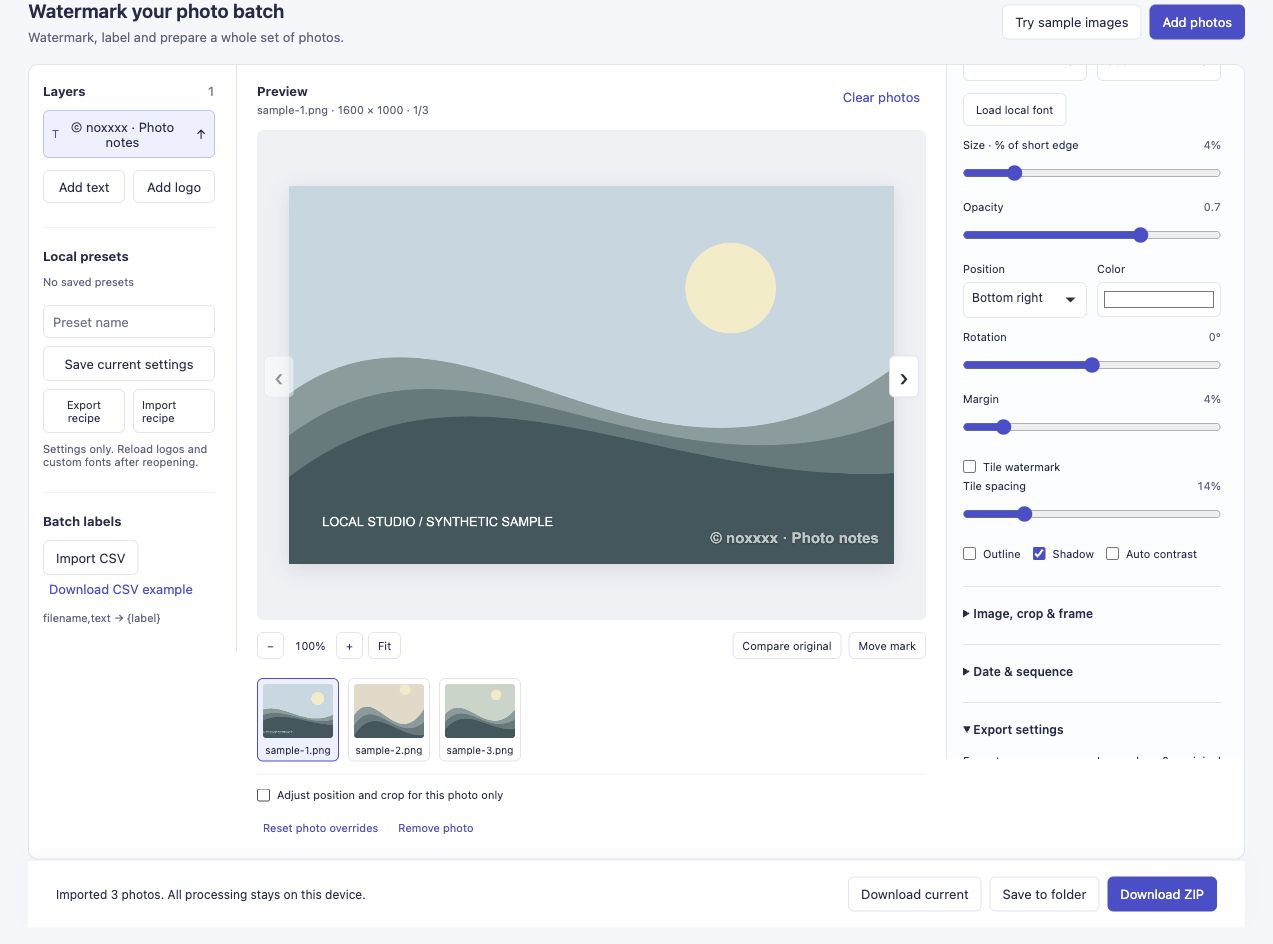
One text layer supplies the batch. The example uses 4% size, 0.7 opacity and a bottom-right shared position.
For an existing transparent logo, choose Add logo instead. See how to keep a PNG logo’s colours and transparency.
3. Check the whole queue
Use the thumbnails or Next photo to inspect each image. Check that the mark is readable and clear of a face, stitching, lettering or another detail that matters.
If one photo needs a different corner, select it and enable Adjust position and crop for this photo only before changing Position. This saves you from dividing the set into a separate batch for every corner. The mixed portrait and landscape guide shows that step in detail.
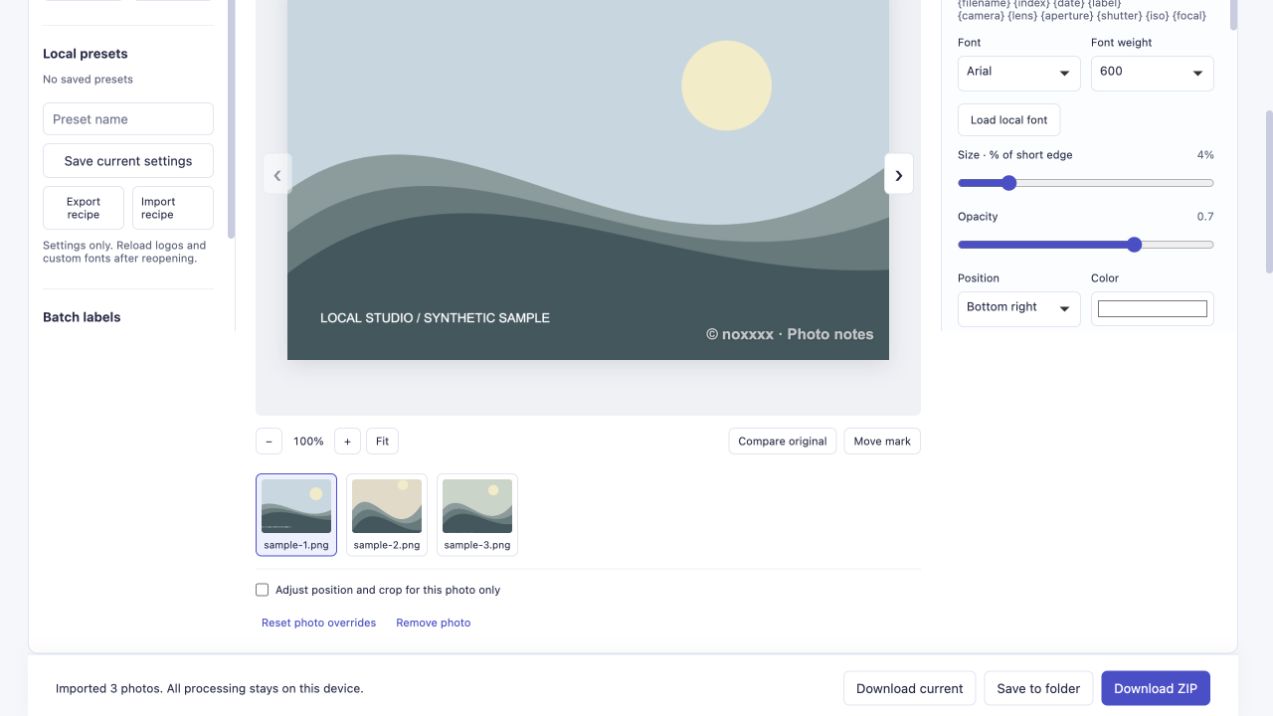
Review the queue before export. A shared setting handles the ordinary photos; individual placement handles the exceptions.
4. Choose sharing dimensions and download
Open Export settings. Set Long edge · 0 = original to 0 to keep each transformed image’s dimensions, or enter a smaller longest edge for sharing copies. A crop or frame also changes the resulting dimensions.
Choose JPEG for ordinary opaque photos, or PNG when that output format suits the job. JPEG and lossy WebP are re-encoded: keeping the original dimensions does not mean that every original pixel or colour profile is preserved.
Choose Download ZIP. Wait for the completion message, then open the ZIP and inspect the files before publishing them. A successful three-image example is shown below.
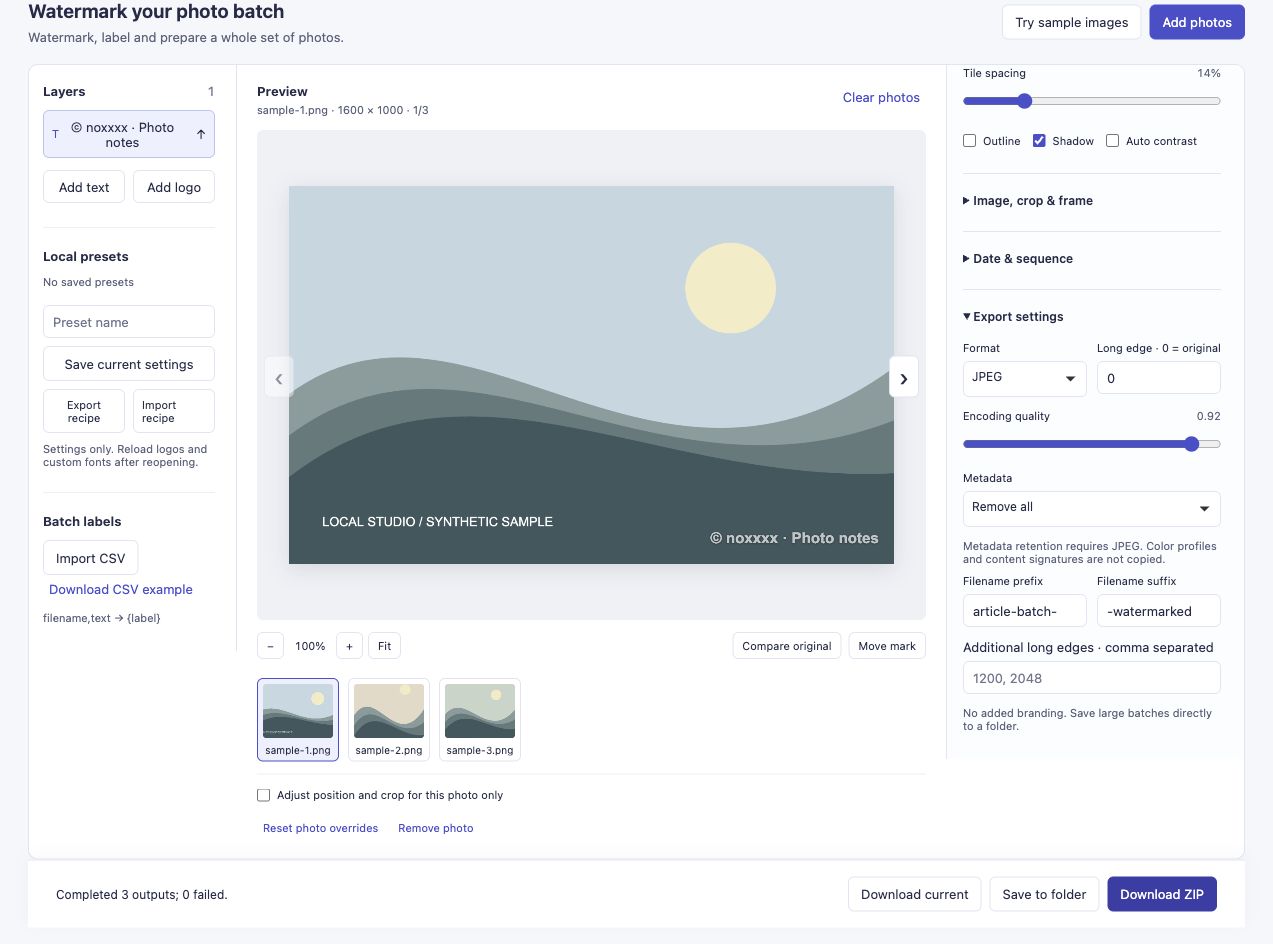
This run produced three JPEGs at 1600 × 1000, 900 × 1200 and 1200 × 1200. The originals were not overwritten.
What if the set is much larger?
There is no paid photo-count quota, but your device still has practical limits. ZIP results are limited to 450 MiB. If a large job runs out of room, use smaller sets or Save to folder in a browser that offers it. Test a modest batch on your own device before committing an afternoon’s photos.
The walkthrough above verifies three inputs; it is not a performance test of hundreds of files. This tool also does not select your best photos, upload to social media or tag people for you.
If you try it, I would like to know which repeated step still slows you down. The photo count, browser and stage where you stopped are more useful than sending private photos.
Where this problem came from
Readers in Yvonne’s watermarking discussion described applying a mark separately to each photo and wanting an option without buying Photoshop. Hai-Binh’s camp photography account described repeated batches under a 50-photo limit in the software he used in 2017. These are historical accounts, not claims about those products’ current limits or endorsements of this tool.