How to batch watermark photos with a browser AI agent
If your agent can operate a browser and choose local files you approve, you can ask it to set a watermark, review a batch and download the finished copies. You do not need the AI to redraw the photos: the existing tool does the image processing, and the agent operates its controls.
I built Local Photo Watermark for local image processing. This walkthrough shows one browser-agent run with three original synthetic images. It includes a reusable task prompt, the actual interface and the downloaded results. It is not a compatibility claim for every agent.
Why a prompt alone is not a workflow
“Watermark my photos” leaves several decisions unresolved: which files the agent may read, the exact credit, how large it should be, where to put it, which copies to export and what counts as finished. An agent can complete a set of clicks yet still produce the wrong batch if those decisions are missing.
There are also three separate capabilities: browser control, access to approved input files, and access to the download. A text-only assistant may be able to write instructions while having none of those capabilities. A remote browser may run on a different computer from your photos. The prompt specifies the job; it does not grant access to your disk.
Use a clear job specification and inspect the result. That is the useful role for an agent here: carrying out a repeatable recipe and reporting exceptions, while a deterministic renderer draws the watermark.
What the tool and the agent can—and cannot—do
| Part | What it can do | What it does not provide |
|---|---|---|
| Watermark tool | Apply shared text or logo layers, resize, preview and export new copies in a ZIP. It also supports per-photo placement and crop adjustments. | It does not choose your best photos, understand every subject, update your WordPress media library or prevent someone removing a visible mark. |
| A suitably equipped browser agent | Select approved files, operate visible controls, read completion notices and receive downloads. Some environments also allow archive inspection. | A prompt cannot add browser, local-file or download capabilities that the agent does not have. Agent limits and usage costs are separate from this free tool. |
| You | Specify the files and credit, approve the desired appearance, and inspect the shared or published result. | A successful download alone does not establish that the mark is readable on every photo. |
The site processes photos in the browser rather than sending them to an image-processing API. Your agent is a separate part of the workflow: it may send screenshots or page observations to its provider. A cloud browser can also involve transferring files off your computer. Check the agent’s actual environment before using private photos; do not describe the whole setup as private just because the watermark renderer is local.
1. Prepare a small, explicit job
Use clean originals or edited copies without a baked-in watermark. Give the agent an exact file list, an expected count, a credit line and an output destination. Keep a clean master for future changes.
To practise, download the three clean synthetic inputs and extract them. The set contains a 1600 × 1000 landscape, a 900 × 1200 portrait and a 1200 × 1200 square. These are original demo graphics, not customer or blogger photos. The demonstration uses © noxxxx · Agent demo as the credit.
Your browser agent needs a supported way to choose those files. If it cannot use the file picker, select the files yourself and let it continue. If its browser runs remotely, decide whether you want that separate transfer before proceeding. There is no need to upload photos to a third-party image-editing service for this tool’s rendering.
2. Give the agent a complete task prompt
Copy the prompt below and fill every bracketed field. For the practice job, list the three extracted files, set the count to 3 and use © noxxxx · Agent demo. The output settings are demonstration choices, not a standard for all blogs.
Download the reusable task prompt.
Use the existing browser interface to watermark only the local photos I specify.

Tool: https://watermark.noxxxx.com/batch-watermark-photos/?lang=en
Approved input files: [paste the exact local file list]
Expected input count: [number]
Watermark text: [your exact credit line]
Output destination: [an approved new destination, or the browser's normal Downloads folder]

Settings:
- One text layer; use the exact text above, Arial, weight 600, white.
- Size: 4% of the short edge. Opacity: 0.7. Position: Bottom right. Margin: 4%.
- Shadow on; outline, auto contrast and tiled watermark off.
- No crop, rotation, flip, border or frame. No per-photo overrides.
- JPEG, encoding quality 0.92, long edge 1200, metadata Remove all.
- Filename prefix agent-, suffix -watermarked, no additional output sizes.
These are requested settings for this job, not universal best settings.

Process:
1. Check that you can operate a browser, choose the approved local files and receive downloads. Do not assume your browser runs on my computer. If it is remote or would require transferring the photos elsewhere, explain that and wait for my choice.
2. If files, count or watermark text are missing, ask only for the missing information. Use a fresh empty tool session. Wait until the controls are ready.
3. Choose Add photos and import exactly the listed files using the supported file chooser. Do not search unrelated folders. If you cannot use the chooser, ask me to select these files, then resume. If fewer files import, report the discrepancy instead of silently continuing with a smaller job.
4. Apply and read back the requested settings. Check the visible labels; do not reuse stale coordinates or silently substitute another feature. Remove unintended extra layers or old settings in this fresh task. Do not apply a recipe over an unrelated session.
5. Review each preview. If the credit is unreadable or covers an important detail, identify the image and ask for a placement decision; do not change the agreed settings silently. Do not claim automatic subject detection. For a larger job, first run a small approved pilot.
6. Choose Download ZIP once. Wait for the tool's completed/failed result. A click alone is not success. If a download appears after a slow response, do not click again just to obtain another copy.
7. If your tools permit, verify the downloaded ZIP exists, opens, contains one JPEG per input and has the expected dimensions without upscaling. Check a downloaded image visually. If archive inspection is unavailable, report that the export was received but contents remain unverified. Ask me to inspect them rather than inventing verification.
8. Keep sources and existing output files intact. Save a new copy; do not overwrite. Do not upload photos to another service, publish posts, create accounts, change permissions or install software for this task.

Report:
- Status: verified / exported but unverified / partial / blocked.
- Imported inputs, generated outputs, failed outputs, and cancellation status, using observed values; mark anything unknown as unknown.
- Actual output location, dimensions checked, and the file visually reviewed.
- Any manual step or unresolved issue. Do not claim all files succeeded when the tool reports failures or when the archive has not been checked.
The prompt authorizes one scoped job. It tells the agent to continue when the required capabilities are available, and to hand back only the particular step it cannot perform. It does not ask for repeated approval of ordinary controls.
3. Let the agent set the shared recipe
The agent opens the batch page, chooses Add photos and waits until all three files have imported. In this run it filled Text, set Long edge · 0 = original to 1200, and set Filename prefix to agent-. It read back the remaining controls, including the shared bottom-right position, 4% size and 0.7 opacity.
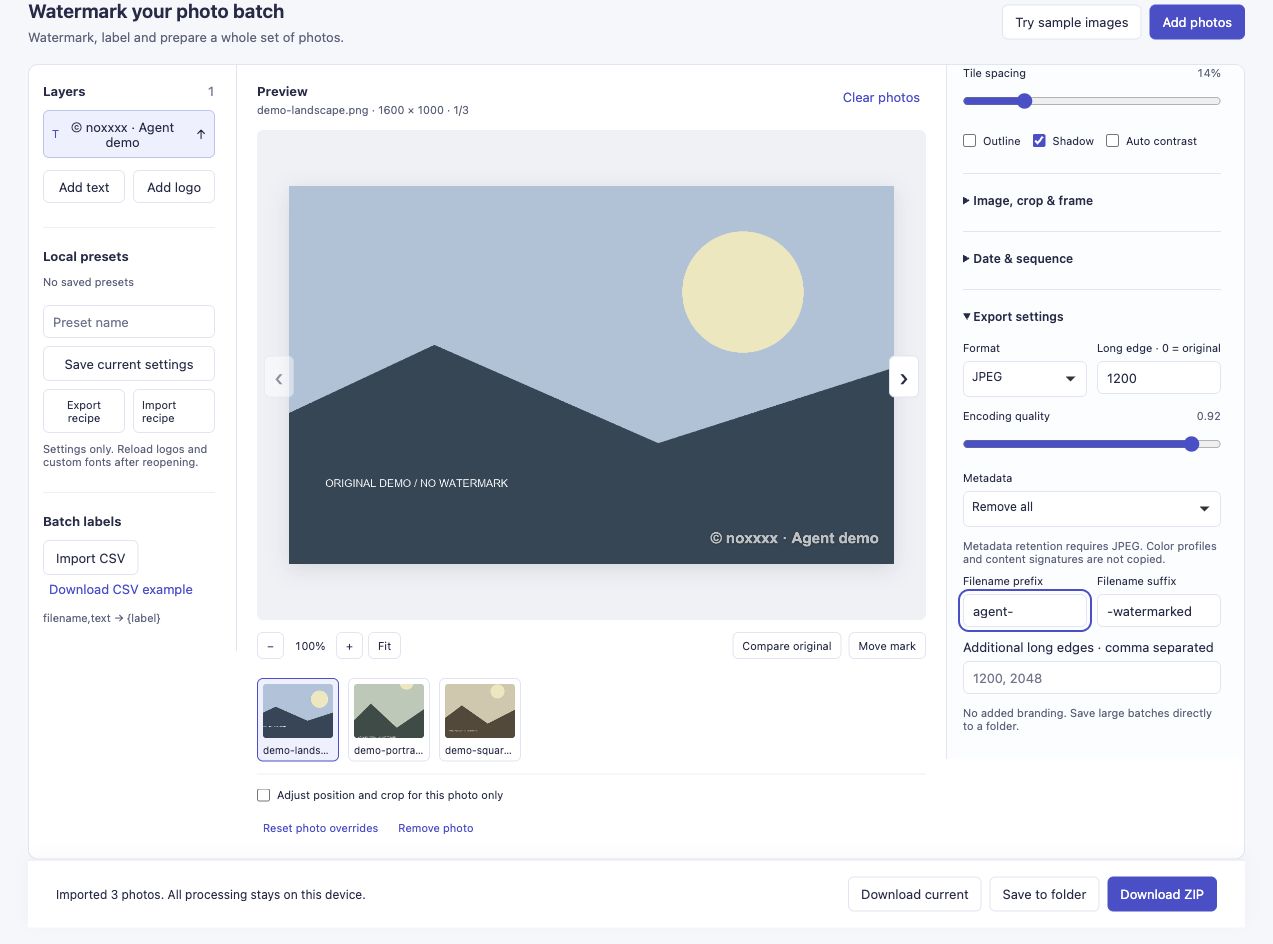
The agent operates the same interface a person uses. Here, the per-photo option is off and the three images share one recipe.
Use visible labels and fresh page observations. Controls may change after importing files or selecting a layer. A stale screenshot position is not a reliable substitute for checking the current page. Wait while import or export disables controls.
4. Review different shapes before exporting
The agent visited the landscape, portrait and square previews. This checks the intended queue as well as how the mark fits different shapes.
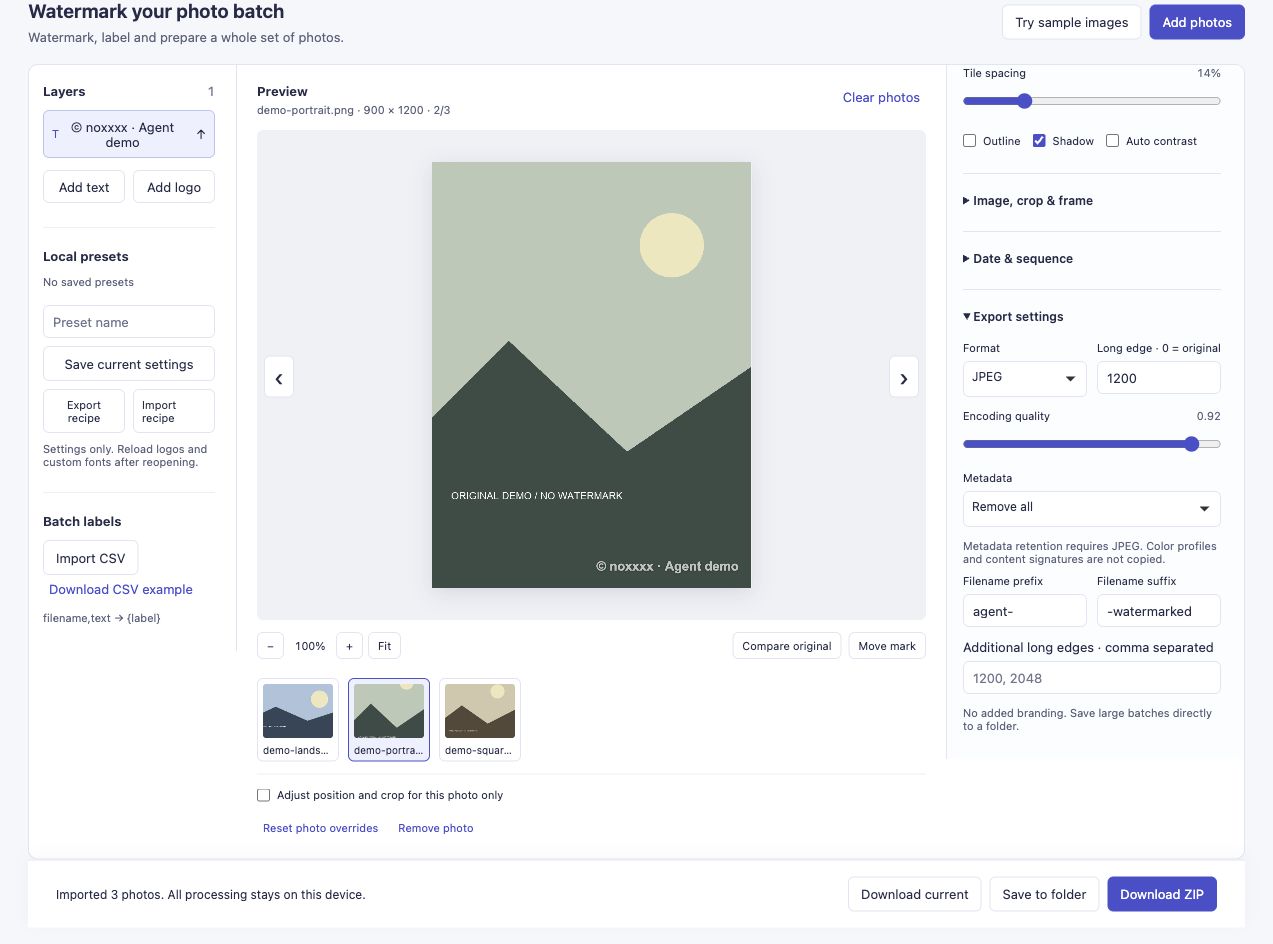
The portrait still uses the shared recipe. Reviewing it is a separate step from confirming that the settings were entered.
A real batch can contain faces, labels or pale backgrounds that these geometric samples do not. If a corner does not work, make an explicit per-photo placement decision; the mixed-photo guide shows the relevant control. The sample run does not establish that an agent can make good composition judgments on every photo.
For an existing transparent logo, use the PNG logo workflow and explicitly add its file, size and appearance to the task. That is a different job specification from the text-only prompt above; importing a logo was not part of this particular agent run.
5. Verify the download, not just the button click
The agent chose Download ZIP once and read Completed 3 outputs; 0 failed. It then received the download. A file-capable verification step opened the archive, decoded all three JPEGs and checked their dimensions. The original PNG hashes were unchanged.
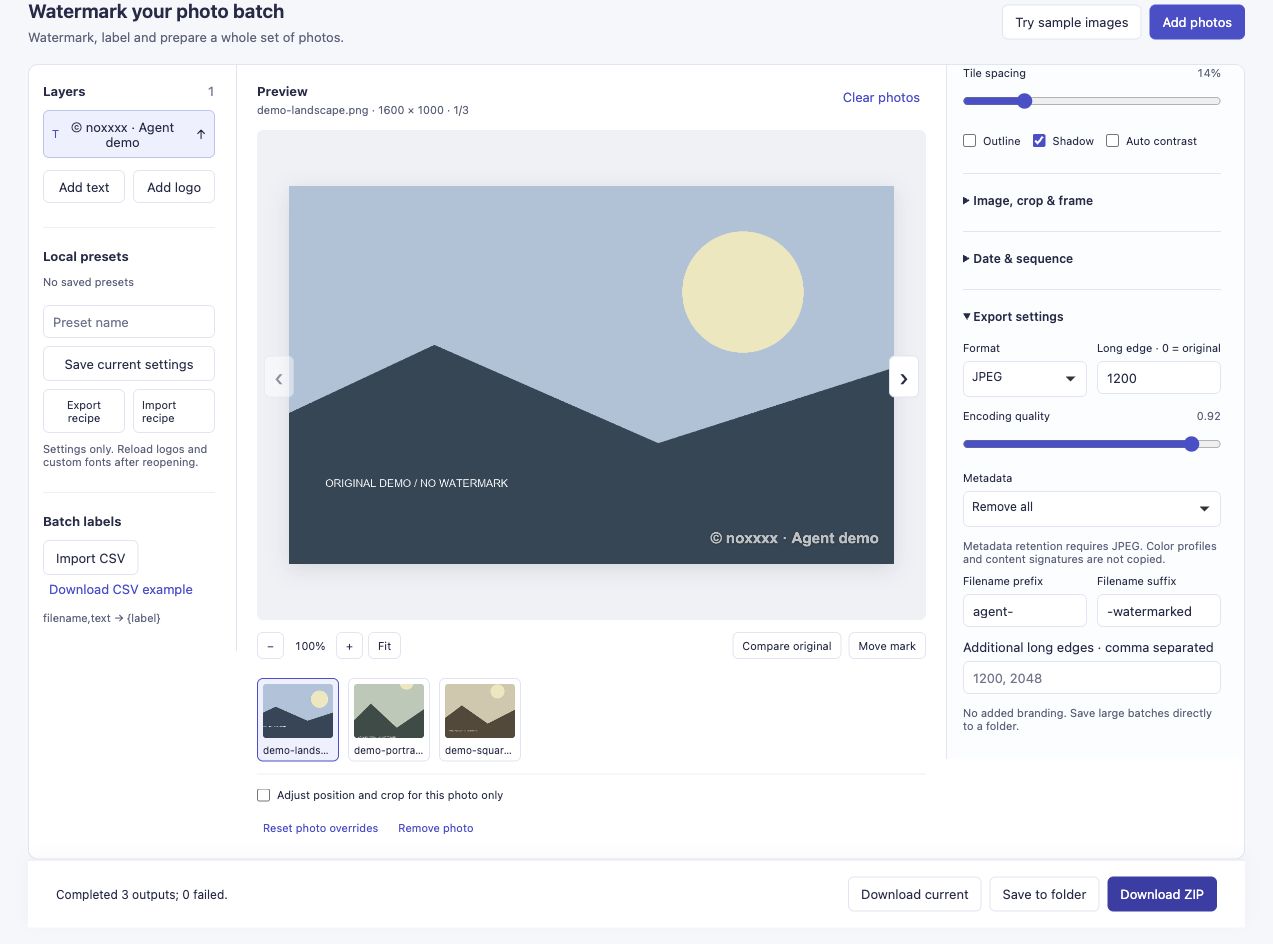
The completion notice is evidence from the tool. The archive checks below are a separate check of what was actually downloaded.
| Input | Exported JPEG |
|---|---|
| Landscape, 1600 × 1000 | 1200 × 750 |
| Portrait, 900 × 1200 | 900 × 1200 |
| Square, 1200 × 1200 | 1200 × 1200 |
A 1200-pixel longest edge keeps proportions; it does not turn every photo into a 1200-pixel square or upscale a smaller source. JPEG output is re-encoded, not lossless. Metadata was set to Remove all for this job.
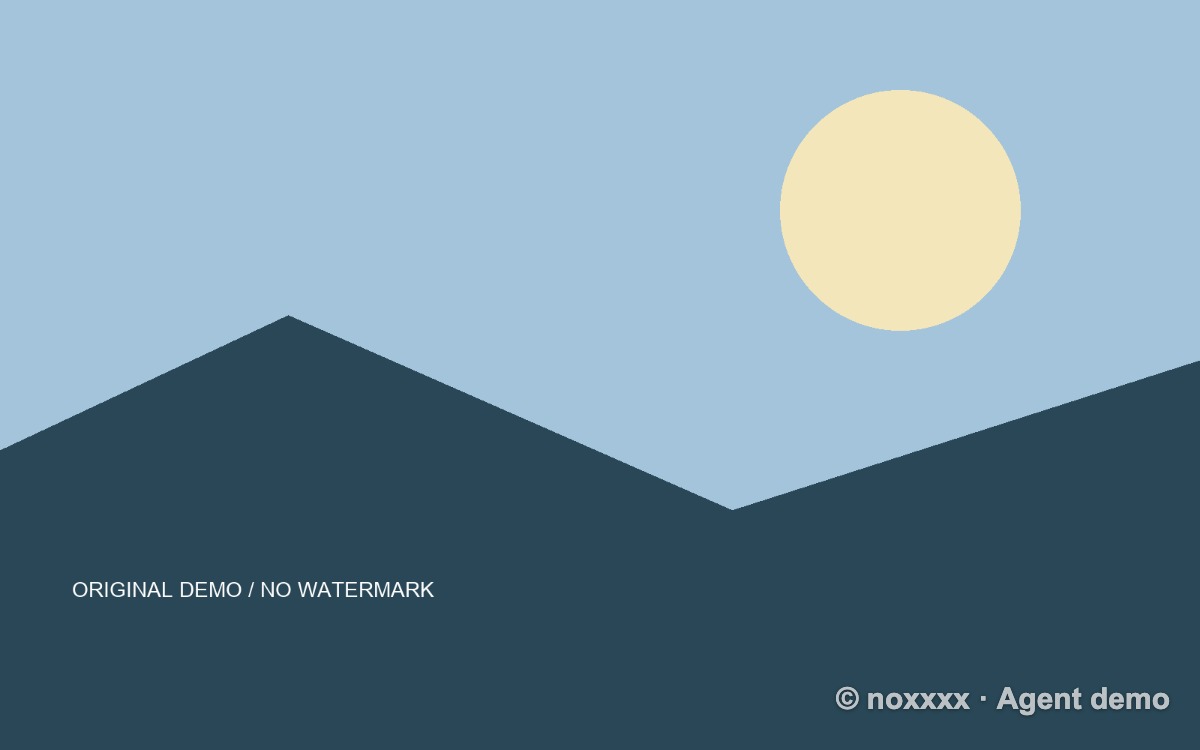
This is a file from the downloaded ZIP, not a reconstructed preview. Inspect the demonstration ZIP or review the verification steps.
The run used one browser-agent environment and three synthetic PNG inputs, with test traffic isolated from growth metrics. It does not establish large-batch performance, mobile compatibility or support across agent products. If your agent cannot inspect an archive, its honest result is “exported, contents not yet verified,” followed by a manual check.
If something stops halfway
- The agent cannot see local files: check which computer hosts its browser. Give it the exact approved files or complete the local picker yourself. Do not assume an instruction grants disk access.
- The controls have not loaded: wait for the actual editor and enabled controls. Do not click page text that happens to resemble a control.
- Some files fail: keep the failure report and inspect successful outputs. Do not count a partial ZIP as a complete job or blindly reprocess the whole set.
- A download is slow: check the completion notice and download state before clicking again. Duplicate clicks can produce duplicate archives.
- The batch is too large: ZIP results are limited to 450 MiB, and device limits can be lower. Use smaller batches. Save to folder depends on browser support and a user-approved destination; it was not tested in this walkthrough.
For repeated jobs, Export recipe can preserve settings for Import recipe later. A recipe does not contain the photos, logo bytes or custom fonts: reload those resources when needed. This article’s run used the visible controls, rather than testing a recipe round trip.
What about calling an API or MCP tool instead?
The developer documentation describes a browser SDK and a separately configured local CLI/MCP route. Those are alternatives when your environment supports them. The public discovery endpoints describe capabilities; they are not a remote photo-processing service. Finding the documentation does not connect an agent to your device.
This tutorial verifies the browser-interface route only. It does not require installing an MCP server or guessing internal app functions. For scheduled or larger repeated jobs, evaluate the documented local automation route separately and test its file permissions and outputs before relying on it.
Try the batch tool. If you try it with your own agent, tell me which step needed help—file selection, settings, review or download. The agent/browser setup and the point where it stopped are useful feedback; private photos are not needed.
References and scope
This article starts from a proposed workflow, not a claim that the previously contacted bloggers requested or adopted agent automation. Tool capabilities and execution boundaries are described in the official developer guide. The browser’s user-controlled file selection is described in MDN’s file-input documentation. The screenshots and downloadable examples above come from the separate run recorded on 26 October 2026.